Skip to main content
Inspections Release Notes - August 2026
Team Inspections Now Support Compliance Settings for Secondary Inspectors
- What - Secondary inspectors can now complete checklist items that require Severity Level and Compliance Date when those compliance settings are enabled for an inspection type. The secondary inspection experience now matches the primary inspector workflow by displaying the required fields for Fail and Citation responses and enforcing completion before submission.
- Why - This enhancement ensures compliance information is captured consistently across all members of a team inspection, preventing incomplete inspection data while allowing organizations to use Team Inspections alongside Compliance Settings.
- How
- Navigate to a Team Inspection assigned as a secondary inspector.
- Mark a checklist item as Fail or Citation.
- If enabled for the inspection type:
- Select a Compliance Date using the inline date picker.
- Choose a Severity Level from the dropdown list.
- Complete all required compliance fields before submitting the checklist.
- If a response is changed back to Pass or N/A, the compliance fields are automatically removed and their values cleared.
- Use Case - During a team inspection, a secondary inspector identifies a failed checklist item that requires corrective action. They can now record the required compliance date and severity level directly from their assigned checklist, ensuring all compliance information is captured before the inspection is completed.
Improved Team Inspection Checklist Numbering
- What - Checklist item numbering has been enhanced for Team Inspections so that both primary and secondary inspector responses are assigned sequential item numbers in the final consolidated inspection report when checklist numbering is enabled.
- Why - This provides a complete and consistent numbering sequence across all inspection responses, making consolidated reports easier to review, reference, and discuss.
- How
- Enable checklist item numbering for the inspection type (existing functionality).
- Complete the Team Inspection as normal.
- Once all secondary inspectors have submitted and the primary inspector completes the inspection, checklist item numbers are automatically assigned during report consolidation.
- Existing numbering behavior for individual inspections remains unchanged.
- Use Case - After multiple inspectors complete different portions of a Team Inspection, the final report displays all applicable checklist items in a single sequential order, making it easier to reference findings during follow-up reviews or compliance discussions.
Request Inspectors Available with Compliance Settings Enabled
- What - The Request Inspectors action is now available for authorized users regardless of whether Severity Level, Compliance Date, or both compliance settings are enabled for the inspection type.
- Why - This removes an unintended restriction that prevented Team Inspections from being initiated when compliance settings were configured, allowing both features to be used together.
- How
- Open an eligible inspection.
- If your role includes permission to request inspectors, select Request Inspectors.
- Choose one or more inspectors and confirm the request.
- Team assignment proceeds normally regardless of the inspection type's compliance settings.
- Use Case - An inspector creating a Team Inspection for an inspection type that requires compliance tracking can now assign additional inspectors without changing or disabling any compliance configuration.
Faster Secondary Inspector Assignment
- What - Secondary inspector assignments are now saved immediately after invitations are confirmed. Invited inspectors can access their assigned checklist right away without requiring the primary inspector to save the inspection first.
- Why - This improves reliability by ensuring inspector assignments are preserved immediately, reducing the risk of lost assignments if the primary inspector leaves the inspection before saving.
- How
- Open the inspection and select Request Inspectors.
- Select one or more secondary inspectors.
- Confirm the invitation.
- Assigned inspectors can immediately access their checklist while the primary inspector continues working without saving.
- If the inspection is later cancelled (when permitted), associated secondary assignments are automatically removed.
- Use Case - A primary inspector assigns additional inspectors at the beginning of an inspection and continues documenting findings. Invited inspectors can immediately begin completing their assigned checklist, allowing the team to work in parallel without waiting for the primary inspection record to be saved.
Inspection Exposure Integration
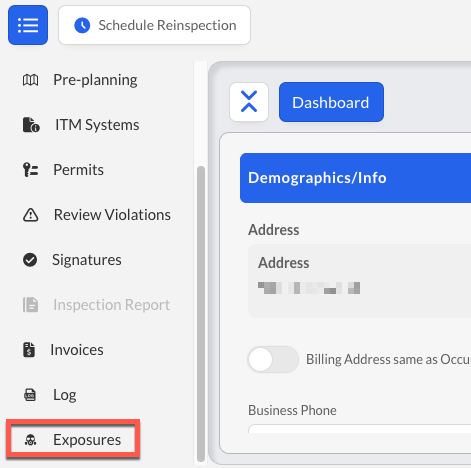
- What - Added the ability to create, view, and access linked Exposure records directly from an Inspection through a new Exposures tab. The enhancement introduces persistent Inspection-to-Exposure associations, supports multiple exposures per inspection, automatically imports applicable inspection information into the exposure creation workflow, and displays linked exposure details including Exposure ID, Exposure Type, Status, and a View Exposure Report action. The feature supports active, completed, cancelled, reopened, review-only, and offline inspection states while maintaining existing Health & Wellness exposure governance.
- Why - This enhancement streamlines the documentation of occupational exposure events identified during inspections by reducing duplicate data entry, improving traceability between Inspection and Exposure records, and providing a more efficient workflow while ensuring exposure permissions, visibility, and lifecycle management continue to be governed within the Health & Wellness module.
- How
- Navigate to an Inspection record and select the Exposures tab.
- Select Create Exposure to launch the existing Exposure creation workflow.
- Review the imported inspection information and select the appropriate personnel to include, if applicable.
- Complete and save the Exposure record to automatically create the association between the Inspection and Exposure.
- Select View Exposure Report from the Exposures grid to open a linked Exposure record.
- Note: The Exposures tab is displayed only for users with permission to open the Inspection record and the appropriate Exposure permissions.
- Note: In Offline Mode, the Exposures tab remains visible but is disabled.
- Note: Exposure status changes and lifecycle management continue to be performed within the Health & Wellness module.
- Use Case - During an inspection, an inspector identifies a potential occupational exposure. Instead of manually navigating to another module and re-entering inspection details, the inspector creates an Exposure directly from the Inspection record. Relevant inspection information is carried into the exposure workflow, the completed Exposure is automatically linked back to the Inspection, and supervisors or authorized users can later review the associated Exposure report directly from the Inspection record.