Skip to main content
Mobile Response (Android) Release Notes April 2026
New Features
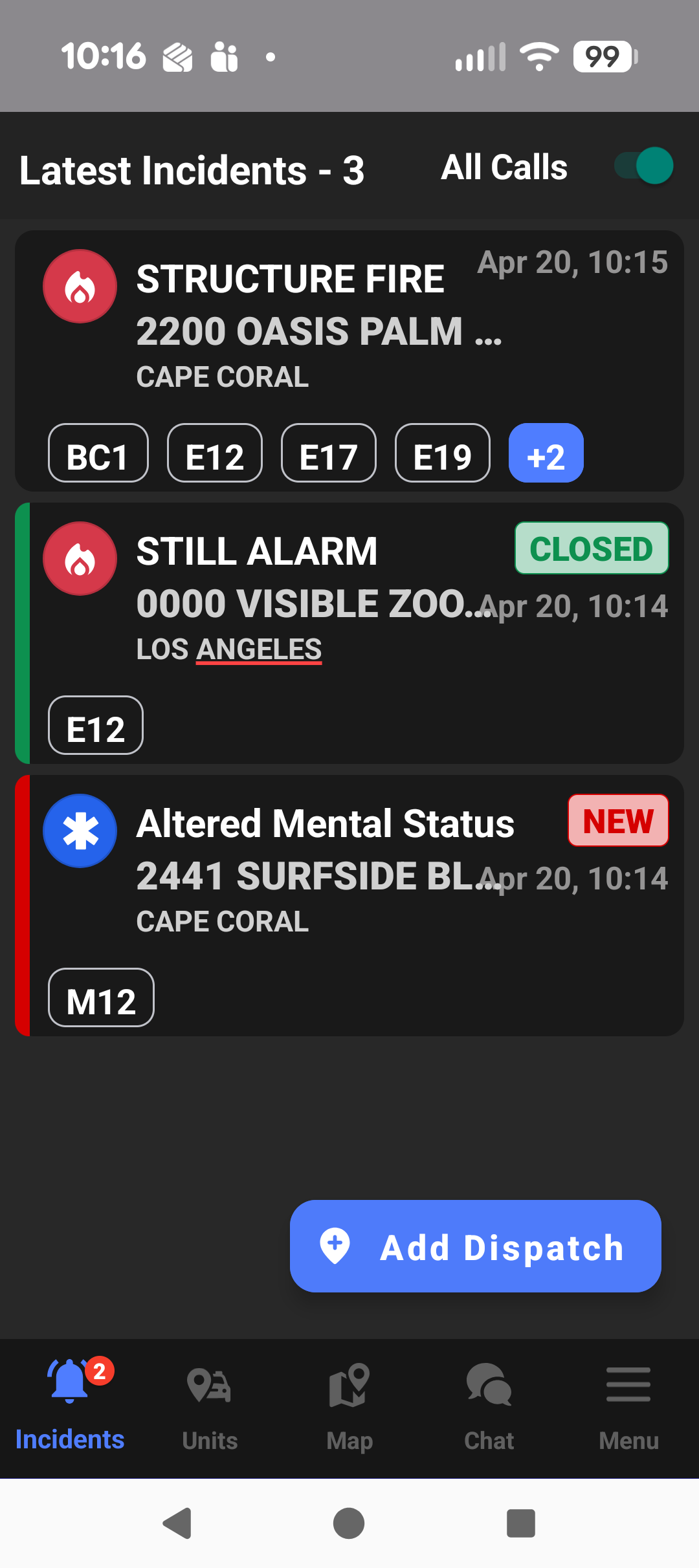
Redesigned Incident Card for Incident List
- What - The Incident List now includes a redesigned incident card that makes key information easier to scan during active response situations. The updated design introduces clearer typography with a bolded address and supporting city line, replaces a single concatenated unit string with individual unit pills, adjusts the placement of the highlight bar, and applies accessibility-focused colors to improve readability and visual hierarchy across the card.
- Why - This change helps responders interpret incident details more quickly and confidently when working under pressure. By improving text hierarchy, separating related information more clearly, and using more accessible color treatments, the updated card reduces visual clutter and supports faster recognition of the most important incident details in the field.
- How
- Open the Incident List in the Android app.
- Review each incident using the updated card layout.
- Identify the incident location through the bold address and supporting city line.
- View assigned or related units through the new unit pills instead of a single text string.
- Note that the updated design is applied automatically and does not require additional setup or configuration.
- Use Case - During a busy shift, a responder reviewing multiple active incidents can quickly distinguish locations, scan supporting details, and identify associated units without needing to parse dense text. This makes it easier to prioritize the next action and confirm the right incident details while moving between calls.
Feature Enhancements
Unit Status Last Updated Timestamp
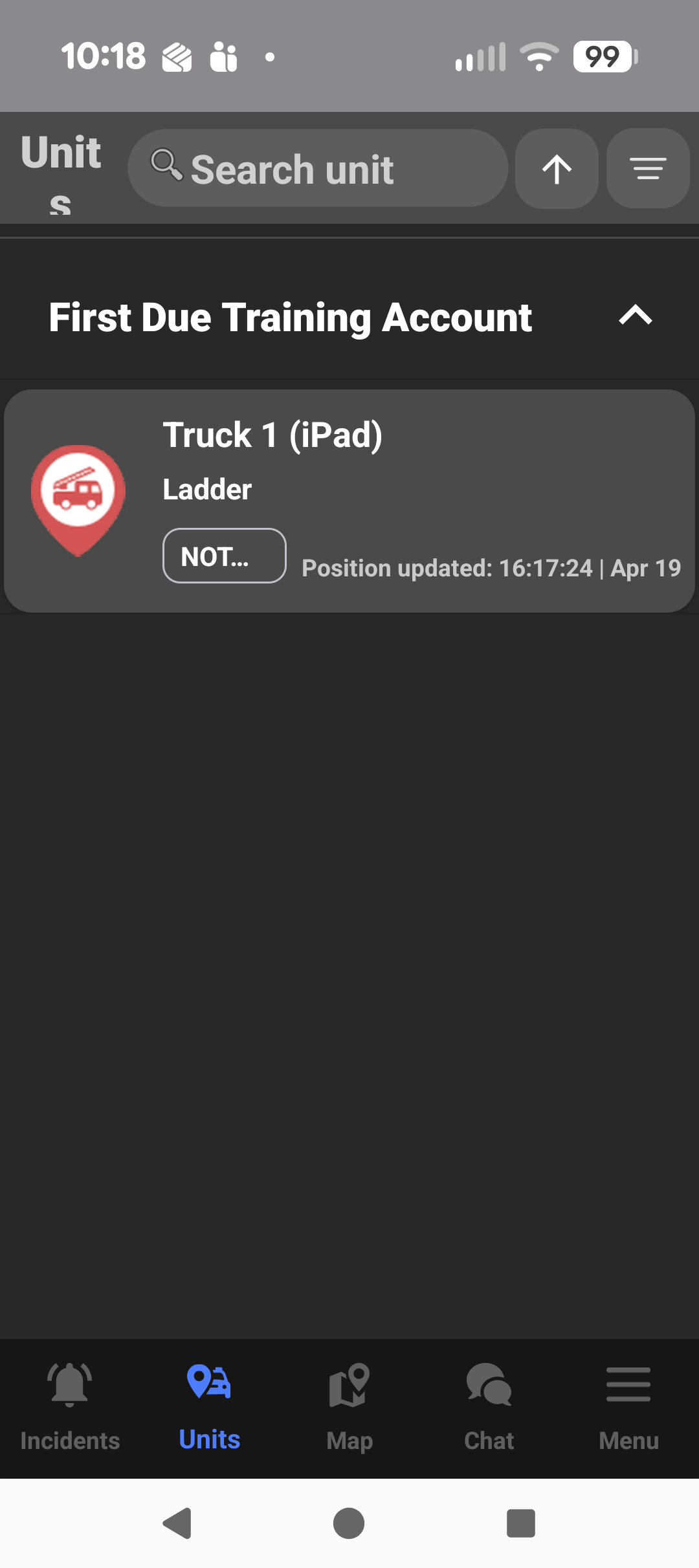
- What - Unit cards on the Units screen now display a Position updated timestamp based on the most recent device location update. The enhancement surfaces when the status information was last refreshed and is designed to display cleanly across both phone and tablet layouts.
- Why - Showing the last updated time gives responders and supervisors more context when reviewing unit information, especially when operational decisions depend on knowing whether a displayed status is current. This added visibility helps users better assess the reliability and timeliness of location-based information.
- How
- Open the Units screen in the Android app.
- Locate a unit card in the list.
- Review the Position updated timestamp displayed on the card.
- Compare timestamps across units when checking which information is most current.
- Note that the timestamp reflects the most recent available device location update.
- Use Case - A supervisor monitoring unit activity can quickly see whether a unit’s displayed position was updated moments ago or several minutes earlier, helping determine whether the information is current enough to support routing, assignment, or accountability decisions.
Pull-to-Refresh on Units Screen
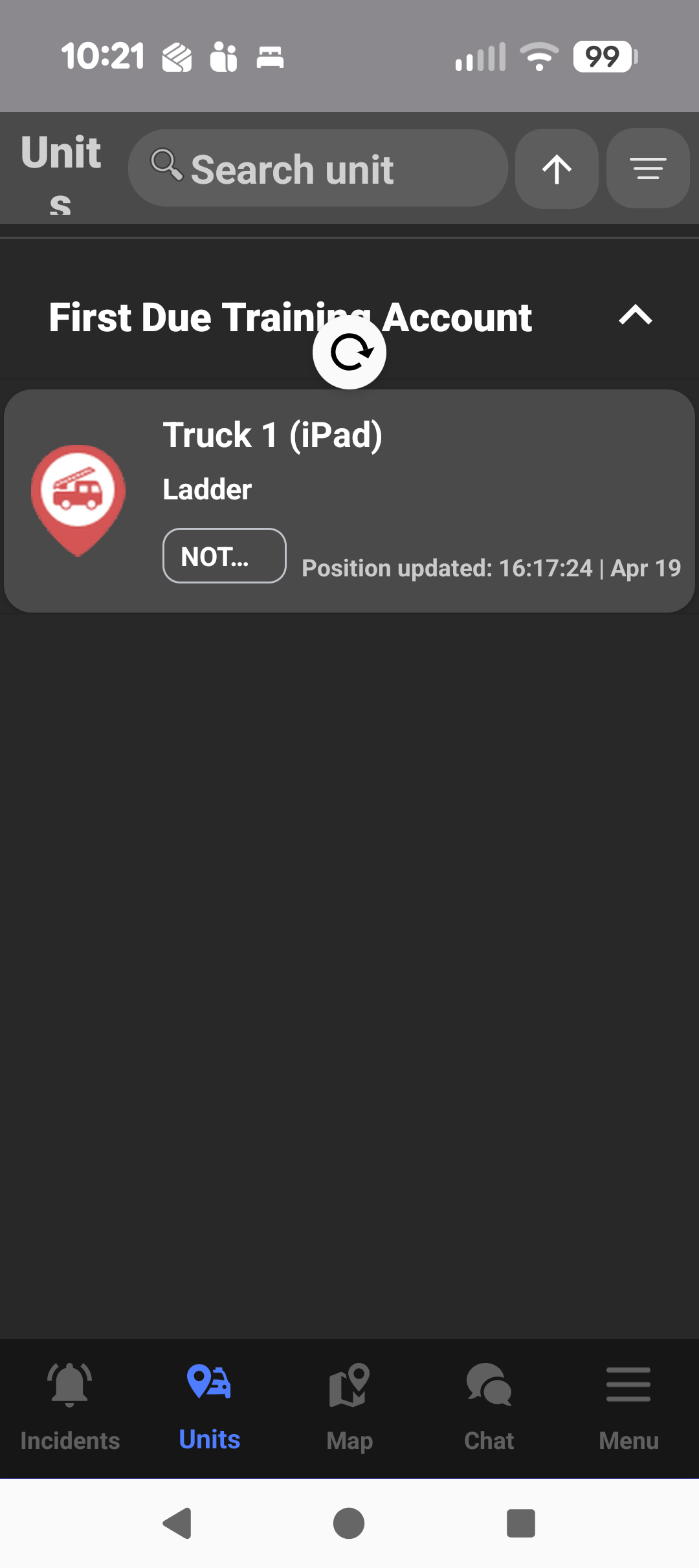
- What - The Units screen now supports pull-to-refresh, allowing users to manually refresh unit information with a familiar gesture. The enhancement includes visible loading progress and handles refresh failures in a more user-friendly way to keep the experience clear and consistent.
- Why - This improvement gives users a fast and intuitive way to request the latest unit information without leaving and reopening the screen. It supports better situational awareness by making it easier to refresh operational data when users need confirmation that the latest updates have been loaded.
- How
- Open the Units screen.
- Swipe downward on the unit list to trigger pull-to-refresh.
- Wait for the refresh indicator to complete.
- Review the updated unit information once the refresh finishes.
- If the refresh is unsuccessful, note any message or unchanged data and try again when connectivity is available.
- Use Case - While monitoring field activity, a user who expects recent movement or status changes can pull down on the Units screen to refresh the list immediately, helping confirm whether new unit information has been received before making a decision.
Fixes
Corrected Permission State After Allow to Respond Is Removed
- What - Fixed an issue where removing Allow to Respond could leave Clear Status appearing enabled when returning to incident details before a full settings refresh occurred. The app now reflects the correct permission state without requiring users to fully reload settings first.
- Why - Accurate permission behavior is critical for preventing confusion and ensuring users only see actions they are authorized to perform. This fix helps maintain trust in the interface by aligning visible controls with current access rights.
- How
- Update to Android 7.1.6.
- Remove the relevant response permission for a user.
- Return to the Incident Details screen.
- Confirm that Clear Status no longer appears enabled when the user is not permitted to respond.
- Use Case - When a user’s response permissions change during an operational period, the updated behavior ensures they no longer see response-related actions incorrectly presented as available, reducing the risk of confusion and failed attempts.
Normalized Custom Pre-Plan Unit Icon Sizing
- What - Fixed an issue causing custom pre-plan unit type icons to render disproportionately larger than default unit type icons on Android. Custom icons now display in line with default icon sizing and better match expected proportions across icon-size settings.
- Why - Consistent icon sizing improves map readability and prevents custom unit types from visually overpowering surrounding map elements. This creates a more balanced and predictable experience when users rely on map symbols to interpret incident and pre-plan information quickly.
- How
- Open a map view containing Pre-Plan Unit Types.
- Review both default and custom unit type icons.
- Confirm that custom icons now appear proportionate to standard icon sizes.
- Adjust icon-size settings as needed and verify the icons remain visually consistent.
- Use Case - A user reviewing a map with multiple pre-plan assets can now interpret custom and default unit icons more consistently, without oversized custom symbols distracting from other critical information on the screen.
Configured Notification Ringtone Now Applies When App Is Closed
- What - Fixed an issue where dispatch message notifications could ignore the configured ringtone when the Android app was closed. Notifications received while the app is closed now use the expected ringtone behavior consistent with other notification states.
- Why - Reliable notification audio is essential so responders can recognize important dispatch activity regardless of whether the app is open or closed. This fix improves consistency and helps ensure users receive the alert experience they configured.
- How
- Configure the preferred notification sound for dispatch-related alerts.
- Fully close the Android app.
- Receive a new dispatch message notification.
- Confirm that the configured ringtone is used for the alert.
- Use Case - A responder carrying a device between calls can rely on the expected ringtone even when the app is not actively open, helping them recognize dispatch activity quickly and respond without delay.
Usage Collection Opt-Out Preference Now Persists Across Sessions
- What - Fixed an issue where the app usage collection opt-out setting did not persist across logout and login sessions. When users turn usage collection off, that preference now remains in place instead of being reset and prompting again unnecessarily.
- Why - Preference settings should remain stable across sessions so users do not have to repeatedly reapply the same choice. This improvement reduces friction and supports a more consistent and respectful user experience.
- How
- Open the relevant app usage or consent setting.
- Turn the usage collection preference OFF.
- Log out of the app and sign back in.
- Confirm that the opt-out preference remains unchanged.
- Use Case - A user who has already chosen not to share usage information can sign back into the app later without being prompted again unnecessarily, allowing them to resume work without additional setup steps.
Regional Pre-Plan Unit Type Background Colors Now Display Correctly
- What - Fixed an issue where configured background colors for regional pre-plan unit types were not being applied correctly in the Android app. Regional pre-plan icons on the map now display with the intended background color settings.
- Why - Color configuration plays an important role in helping users distinguish map elements quickly and consistently across platforms. Correctly applying these settings improves map clarity and aligns the Android experience more closely with expected visual behavior.
- How
- Open a map containing regional pre-plan unit types.
- View the configured unit type icons on the map.
- Confirm that each icon displays the expected background color.
- Compare multiple regional unit types as needed to verify visual differentiation.
- Use Case - When a user is reviewing regional resources on a map, the corrected background colors make it easier to identify unit types at a glance and maintain consistency with established map conventions.
Map Layer Setting Changes Now Persist When Dismissing the Panel by Tapping Outside
- What - Fixed an issue where changes to Map Layer settings or Map Technology selections were not always saved if the settings panel was dismissed by tapping outside of it. Updates now persist whether the panel is closed with the X control or by tapping outside the panel.
- Why - Users expect configuration changes to be saved regardless of how they close a panel. This fix improves predictability and prevents frustration caused by having to reapply map preferences after using a common dismissal action.
- How
- Open the Map Layers panel.
- Change a Map Layer or Map Technology setting.
- Dismiss the panel by tapping outside it.
- Reopen the panel or return to the map to confirm the change was saved.
- Use Case - A user adjusting map visibility during an incident can quickly tap outside the panel to return to the map, confident that the chosen settings remain applied without needing to reopen the panel and reconfigure them.
Invalid Address IDs No Longer Trigger Address-Related Requests
- What - Fixed an issue where address-related API requests could still be called when the address ID was invalid, such as 0, -1, or null. The app now skips these requests when the identifier is not valid.
- Why - Preventing invalid requests reduces unnecessary server traffic, avoids avoidable errors, and improves overall application stability. This also helps ensure the app behaves more predictably when incomplete or invalid data is encountered.
- How
- Update to Android 7.1.6.
- Open a workflow involving address-linked data.
- Confirm that records with invalid address identifiers do not trigger address-related lookups.
- Proceed with valid records normally, where requests continue as expected.
- Use Case - When a user opens a record containing incomplete address data, the app now avoids making unnecessary backend calls, reducing the chance of visible errors and keeping the workflow moving smoothly.
Outstanding Requests Now Cancel When Authentication Becomes Invalid
- What - Fixed an issue where the app could continue making API requests after authentication became invalid. When a 401 or invalid-credentials condition is detected, outstanding requests are now cancelled instead of continuing with an invalid session.
- Why - Cancelling invalid requests improves session handling, reduces unnecessary backend activity, and helps the app recover more cleanly from authentication failures. This supports more secure and reliable behavior when a session expires or credentials are no longer valid.
- How
- Use the app until the session becomes invalid or authentication expires.
- Trigger an action that would normally create additional requests.
- Confirm that active requests are cancelled after the authentication failure is detected.
- Sign in again to resume normal activity.
- Use Case - If a user’s session expires while navigating the app, the client now stops continuing background or in-progress requests with invalid credentials, helping avoid repeated failures and making re-authentication behavior clearer.
Crash Fixes from Version 7.1.5
- What - Resolved a set of crash-related issues carried over from version 7.1.5, improving overall application stability in Android 7.1.6. These fixes address underlying failure points identified from crash monitoring and linked issue review.
- Why - Stability improvements are essential for users who rely on the app in time-sensitive situations. Reducing crashes helps support uninterrupted workflows, improves trust in the application, and lowers the likelihood of users being disrupted during active operations.
- How
- Update the Android app to version 7.1.6.
- Use the app across normal workflows, including areas previously affected by instability.
- Confirm improved stability during routine navigation and operational tasks.
- Note that individual crash scenarios may vary depending on prior conditions resolved in this release.
- Use Case - A responder or supervisor using the app throughout a shift can work more confidently knowing several previously reported crash scenarios have been addressed, reducing the risk of interruption during critical tasks.