Purpose Statement
The Bulk Permit Renewal with Auto-Invoice Generation feature enables administrators to renew multiple permits simultaneously while automatically creating and emailing invoices to permit contacts.
This streamlined workflow reduces manual processing time, ensures timely renewals, improves billing accuracy, and accelerates payment collection for permits requiring periodic reauthorization.
Background Information
Fire and EMS agencies often manage hundreds or thousands of renewable permits (e.g., fire alarm permits, hazardous material permits, operational permits). Processing renewals individually can create administrative bottlenecks and increase the risk of billing delays.
The Bulk Renewal feature allows batch processing of eligible permits that are configured with renewable workflows. Built-in validation checks ensure only qualifying permits are processed and provide detailed reporting for records that require correction.
When Auto-Invoice Generation is selected:
Individual invoices are created per permit based on configured fee schedules.
Invoices can be emailed immediately to the permit contact.
Billing records are automatically tied to the permit renewal submission.
Cash flow improves by reducing the delay between renewal submission and payment request.
This feature supports operational efficiency, compliance tracking, and accurate financial reporting.
Required Permissions
To perform Bulk Permit Renewals with Auto-Invoice Generation, users must have:
Permits Module Access – View and manage permit records
Permit Renewal Permission – Submit permits for renewal processing
Bulk Actions Permission – Execute batch operations
Invoice Generation Permission – Create and manage invoices
Email Invoice Permission – Send invoices to permit contacts
Account must have the automatic status
Note: Permission names may vary by agency configuration. Ensure the assigned user role includes billing and permit workflow access.
Video:
Step-by-Step Guide
1. Navigate to the Permits Module
Click Permits from the main navigation menu.
Select Permits from the dropdown.
2. Select Eligible Permits
Check the boxes next to the permits you wish to renew.
(Filters can be used to help sort through the list)
⚠️ Only permits configured with a Renewable Workflow are eligible.
3. Confirm Permit Eligibility
Verify the selected permits:
Are assigned to a Renewable Workflow
Are in one of the following statuses:
Active
Expired
Approved
Renewal Rejected
Only permits in these statuses can be submitted for renewal.
4. Initiate Bulk Renewal
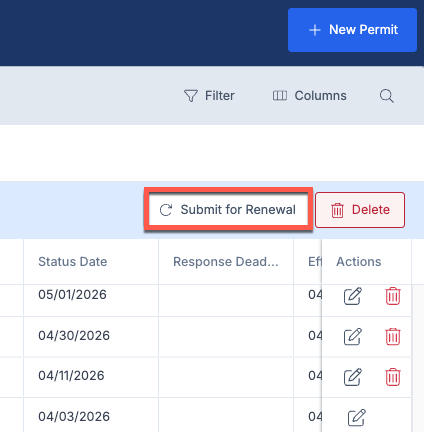
Click Bulk Actions.
Select Submit for Renewal.
5. Configure Invoice Options
The Submit Permits for Renewal modal will populate.
Check Submit Renewal just to renew
Check Submit & Create Invoice to automatically generate invoices.
Check Submit, Create & Email Invoice to send invoices to the Permit Contact.
6. Submit the Renewal
Click Submit to continue.
Select Download Excel to download the list of Permits that are not eligible for Renewal to address.
Under Actions click to see the form if needed.
7. Verify Status Updates
Upon successful processing:
Permits will display Active – Renewal Submitted
If previously Renewal Rejected, status will update to Active – Resubmitted
8. Address Validation Notices (If Applicable)
If any permits cannot be processed, a notification will appear.
Common reasons:
Missing previous invoices
Incorrect permit status
Incomplete required data
Click Download Excel to export the validation report.
- Review the spreadsheet for detailed exclusion reasons and corrective actions.
Best Practices
- Pre-Processing Review: Always verify permit eligibility before initiating bulk renewals to minimize processing errors
- Batch Size Management: Process permits in manageable batches (50-100 permits) for optimal performance
- Email Verification: Ensure permit contact email addresses are current before enabling auto-email functionality
- Status Monitoring: Regularly check permit statuses after bulk processing to identify any issues requiring attention
- Documentation: Maintain records of bulk renewal activities for audit and compliance purposes
- Timing Considerations: Schedule bulk renewals during low-activity periods to avoid system performance impacts
Troubleshooting & FAQs
Q: Can I bulk renew permits with different fee amounts?
A: Yes, the system will generate individual invoices with appropriate fees for each permit based on the configured fee schedules for each permit type.
Q: What happens if a permit contact email bounces?
A: Failed email deliveries are logged in the system. You can manually resend invoices or contact permit holders through alternative methods.
Q: Can I undo a bulk renewal submission?
A: Once submitted, bulk renewals cannot be automatically undone. However, individual permits can be managed through their respective permit records if corrections are needed.
Q: How long does bulk renewal processing take?
A: Processing time varies based on the number of permits selected. Small batches (under 50 permits) typically process within minutes, while larger batches may take longer. The system will provide status updates during processing.
Q: Why are some permits excluded from bulk renewal?
A: Permits may be excluded if they don't have renewable workflow configuration, are in ineligible statuses, or have missing required data. The validation report will detail specific exclusion reasons.
Q: What should I do if invoices fail to generate?
A: Check that Invoice Generation permissions are properly configured and that permit fee schedules are set up correctly. Contact system administrator if issues persist.