Purpose Statement
The Permit Data Sharing feature enables Fire/EMS agencies to securely share permit information with partner organizations within the First Due platform. This functionality allows authorized users from different client accounts to view permit data for properties in shared jurisdictions, improving coordination and information access across multiple agencies while maintaining appropriate access controls.
Background Information
Permit Data Sharing is part of First Due's broader data sharing capabilities, designed to facilitate inter-agency collaboration in fire prevention, inspection, and emergency response activities. This feature is particularly valuable for:
- Multi-jurisdictional response scenarios
- Mutual aid agreements
- Regional fire prevention programs
- Coordinated inspection activities
The feature requires active data sharing configuration and is only available to client accounts with data sharing enabled. Access is controlled through granular permissions that allow organizations to specify exactly what permit information can be viewed by partner agencies.
Required Permissions
To configure Permit Data Sharing, users must have:
- Admin access to the User Data Sharing module
- FD Permits - Read permission (for viewing shared permits)
- Appropriate data sharing permissions enabled at the account level
Partner organizations viewing shared permits require:
- FD Permits - Read permission in their own account
- Granted access through the sharing organization's User Data Sharing configuration
Video
Step-by-Step Guide
1. Access the User Data Sharing Module
Click Admin from the main navigation.
Select User Data Sharing.
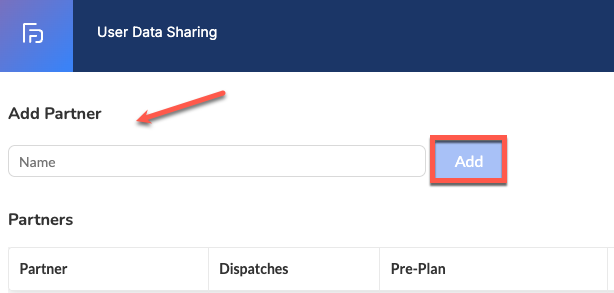
2. Add a Partner Organization
In the search field, enter the name of the organization you want to share data with.
Click Add.
Confirm the organization appears as a new row in the configuration table.
3. Configure Address Share Module Access
Locate the Address Share Module column.
From the dropdown, select:
Fire Inspection/Permit, or
Permit
If needed, remove a user by clicking the trash can icon in the respective row.
Click Save to confirm changes after all changes are made.
4. Configure Permit Access Level
In the Permit column for the partner organization, select one of the following:
None – No access to permit data.
View Only – The partner can view existing permits if they also have the FD Permits – Read permission.
Click Save after all configuration changes are complete.
To remove a partner organization, click the trash can icon in the respective row and click Save.
5. Understand Permit Visibility Rules
Review the scenarios below to ensure correct configuration across all partner organizations.
Confirm that all required permissions are granted directly between involved clients (no permission chaining).
Scenario 1: Permit Created in Own Location
Client A creates a permit in their own place
Client A users: Always view and edit.
Client B users: View only if Client A granted Permits = View Only.
Client B users: Cannot edit.
Scenario 2: Permit Created in Partner’s Location
Client A creates a permit in Client B’s place
Client A users: Can view/edit only if Client B granted Address Share Module = Permit or Fire Inspection/Permit.
Client B users: Can view only if Client A granted Permits = View Only (even though Client B owns the place).
Scenario 3: Multi-Partner Access (Client C)
Client C can view the permit only if:
Client A granted Permits = View Only, AND
Client B granted either:
Permits = View Only, OR
Address Share Module = Permit or Fire Inspection/Permit
Permission Chaining (Not Allowed)
If Client A shares addresses with Client B, and Client B grants Permits = View Only to Client C:
Client C cannot view permits created by Client B in Client A’s places.
Client A must directly grant Client C:
Permits = View Only, OR
Address Share Module = Permit or Fire Inspection/Permit
Best Practices
- Regularly review and audit data sharing permissions
- Grant only the minimum necessary access level for each partner organization
- Document sharing agreements and maintain records of access grants
- Establish clear protocols for adding and removing partner access
- Ensure partner organizations have appropriate internal permissions before granting access
- Coordinate with partner agencies to verify they have FD Permits - Read permissions
- Monitor shared data usage and maintain audit trails
- Review and update sharing agreements periodically
- Communicate with partner organizations when setting up or modifying sharing permissions
- Establish clear understanding of data usage policies and restrictions
- Coordinate permit creation workflows to avoid conflicts or duplicate entries
Troubleshooting & FAQs
Q: Partner organization cannot see shared permits despite having access granted.
A: Verify that:
- The partner organization has FD Permits - Read permission in their account
- Both "Address Share Module" is set to "Permit" or "Fire Inspection/Permit" AND "Permit" column is set to "View Only"
- Changes have been saved in the User Data Sharing configuration
Q: Can partners edit permits in shared locations?
A: No, partners with "View Only" access can only view permits. They cannot create, edit, or delete permits in shared locations.
Q: How does permission chaining work with multiple partners?
A: Permission chaining is not allowed. Each partner must receive direct permission grants. For example, if Client A shares with Client B, and Client B wants to share with Client C, Client A must directly grant permissions to Client C.
Scenario 1: Permit in Own Location
- Users from Client A create permit in their location
- Client A users: Full view and edit access
- Client B users: View only (if granted "Permits = View Only")
Scenario 2: Permit in Partner's Location
- Client A creates permit in Client B's location
- Client A users: View/edit only if Client B granted "Address Share Module" = "Permit" or "Fire Inspection/Permit"
- Client B users: View only if Client A granted "Permits = View Only"
Scenario 3: Multi-Partner Access
- For Client C to view permits created by Client A in Client B's location, both Client A and Client B must directly grant appropriate permissions to Client C