Purpose Statement
This article explains how to add existing custom questions to a Form Builder list in First Due. By incorporating custom questions into forms, users can collect module-specific information and organize questions to meet their department's needs.
Background Information
Certain First Due modules allow users to incorporate previously created custom questions into their forms using Form Builder.
This functionality allows users to:
Add existing module-specific custom questions to a new or existing form.
Include multiple custom questions within the same form.
Reorganize questions to establish a preferred order.
Convert or delete questions using the available question controls.
Important: The Custom Questions option is only available in modules that support this functionality. Custom questions must already exist within the applicable module before they can be selected in Form Builder.
Required Permissions
Users must have the appropriate permissions to access and manage Form Builder within the applicable module.
Video
Step-by-Step Guide
Step 1: Access Form Builder
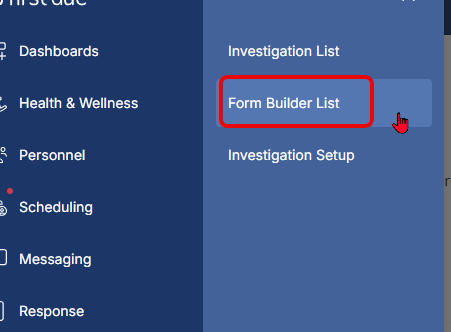
1. Navigate to the Form Builder List within the applicable First Due module.
2. Select the option to create a new form or edit an existing form.
3. For this example, create a new form.

Step 2: Name Your Form
1. Enter a name for the new form.
2. A form name is required when creating a new form.
Step 3: Locate Custom Questions
1. Scroll down to the Form Body section.
2. Select the + (Add) button to add an item to the form.
3. Scroll through the available options until you locate Custom Questions.
4. Select Custom Questions to access the questions previously created within the module.
Step 4: Add Custom Questions to Your Form
1. Locate the custom question you want to include.
2. Select the desired question to add it to your form.
3. Repeat this process to add additional custom questions as needed.
Step 5: Manage and Organize Custom Questions
1. Locate the six-dot menu associated with the question.
2. Select the six-dot menu to access the available question management options.
3. Use the available controls to:
Convert: Access the option to convert the question.
Move Up: Move the question higher in the form.
Move Down: Move the question lower in the form.
Delete: Remove the question from the form.
4. Continue organizing the questions until they appear in your preferred order.
Best Practices
- Create custom questions first: Ensure the necessary custom questions have already been created within the applicable module before accessing Form Builder.
- Use descriptive form names: Choose names that clearly identify the form's purpose.
- Organize questions logically: Arrange questions in an order that makes sense for users completing the form.
- Avoid unnecessary questions: Include only the custom questions needed to collect relevant information.
- Review question placement: Use the six-dot menu to adjust question order before finalizing the form.
- Verify module compatibility: Confirm that the module supports Custom Questions within Form Builder.
________________________________________________________________________________________________________________________
Troubleshooting & FAQs
Why can't I find the Custom Questions option in Form Builder?
The Custom Questions option is only available in modules that support this functionality. Verify that the module includes this feature.
Why isn't my custom question appearing in the available list?
Confirm that the custom question was previously created within the applicable module. The Custom Questions option is designed to display questions created within that module.
Can I add multiple custom questions to the same form?
Yes. You can select and add multiple custom questions to a form.
Can I add custom questions to an existing form?
Yes. You can create a new form or edit an existing form to include custom questions.
Can I change the order of custom questions?
Yes. Use the six-dot menu associated with the question to move it up or down the list.
Can I remove a custom question from my form?
Yes. Select the six-dot menu associated with the question and choose the Delete option.
Do I need to name my form before adding questions?
When creating a new form, a form name is required.