Purpose Statement
This article explains how to add and configure Raw HTML within an existing Emailable and Printable Form in First Due. The Raw HTML option allows users to insert custom HTML content into a form and adjust its placement or configuration using the Form Builder tools.
Background Information
The Emailable and Printable Form Builder allows users to create and customize forms to meet their department's needs.
The Raw HTML option provides additional flexibility by allowing users to insert HTML content directly into a form.
Once added, the Raw HTML component can be modified using the available configuration tools, including converting the component, adjusting its position, or deleting it.
Required Permissions
Users must have the appropriate permissions to access and edit Emailable and Printable Forms.
Note: The specific First Due permission names required to perform this action were not identified in the provided transcript and should be verified before publishing.
Video
Step-by-Step Guide
Step 1: Open an Existing Form
Navigate to the Form Builder within the First Due module you are working on.
Open an existing form that you want to modify.
Step 2: Add a Raw HTML Component
Locate the + (Plus) button within the Form Builder.
Select Add.
From the available options, select Raw HTML.
Step 3: Insert Raw HTML
Once the Raw HTML component opens, locate the HTML input box.
Copy the HTML code you want to add to the form.
Paste the HTML code into the provided box.
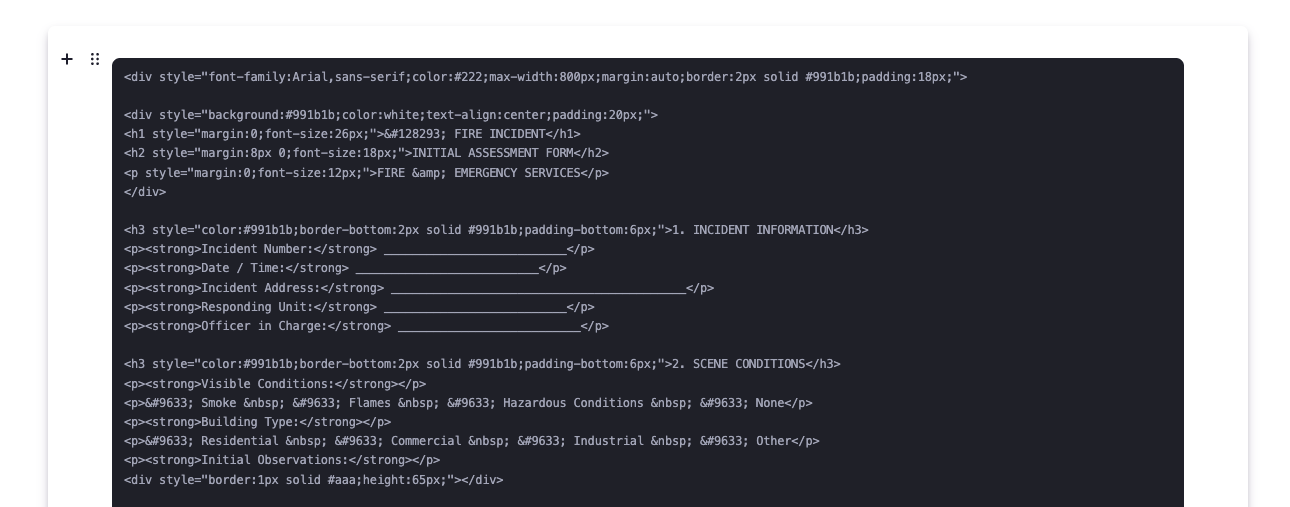
4: Configure the Raw HTML Component
After inserting the HTML, locate the available configuration options.
Use the following tools to modify the component as needed:
Convert: Change the component to another available component type.
Move Up: Move the component higher within the form.
Move Down: Move the component lower within the form.
Delete: Remove the Raw HTML component from the form.
3. Adjust the component until it is positioned and configured as desired.
Step 5: Save the Form
Once all changes have been completed, select Save.
Ensure that you save the form after making any modifications to the Raw HTML component.
Best Practices
Prepare HTML in Advance: Have your HTML code ready before adding the Raw HTML component to streamline the process.
Review HTML Content: Verify that the correct HTML code has been pasted into the input box.
Organize Form Components: Use the Move Up and Move Down options to position the Raw HTML component appropriately within the form.
Use Convert Carefully: Review the available component types before converting an existing Raw HTML component.
Save Your Changes: Always select Save after adding, editing, moving, or deleting a component.
Troubleshooting & FAQs
How do I add Raw HTML to an existing form?
Open the form in the Emailable and Printable Form Builder, select the + (Plus) button, choose Add, and then select Raw HTML.
Can I change the position of a Raw HTML component after adding it?
Yes. Use the Move Up and Move Down options to adjust the component's position within the form.
Can I convert a Raw HTML component into another component type?
Yes. The component includes a Convert option that allows you to select from available component types.
How do I remove a Raw HTML component from my form?
Locate the Raw HTML component and select the Delete option.
Can I modify the Raw HTML after adding it?
The transcript demonstrates pasting HTML into the component and adjusting its configuration. The process for editing previously saved HTML content was not demonstrated.
Why aren't my changes appearing in the form?
Confirm that you selected Save after making your changes. If the issue persists, verify that the intended component was modified.