Purpose Statement
The Operations section in a fire incident documentation enables users to comprehensively document command structure, safety protocols, and departmental actions taken during emergency incidents. This section ensures proper documentation of incident command activities, resource deployment, and operational decisions, supporting accurate reporting, after-action reviews, and compliance with NERIS (National Emergency Response Information System) requirements.
Background Information
The Operations section is completed after the Scene Size-up section and represents a critical component of incident documentation. This section is divided into two primary fields: Command and Safety, and Actions. The Command and Safety field captures the incident command hierarchy, including command establishment, transfers, size-up activities, and operational structure. The Actions field documents the overall department response activities based on the incident type selected in the Response section.
This documentation is essential for maintaining chain-of-command records, tracking operational decisions, and ensuring NERIS compliance. The system automatically populates certain action options based on the incident type, streamlining documentation while maintaining accuracy. Only the first three actions selected are transmitted to NERIS, ensuring compliance with reporting standards.
Required Permissions
Based on available permission data, users will need access to fire report editing capabilities. Specific permissions that may be relevant include:
- Incident Reporting > Incidents
- Incident Reporting > Update Incident Reporting
Video
Step-by-Step Guide
1. Navigate to the Fire Incident List
- Select the First Due icon.
- Go to Fire Documentation.
- Select Fire Incident List.
2. Access the Operations Section
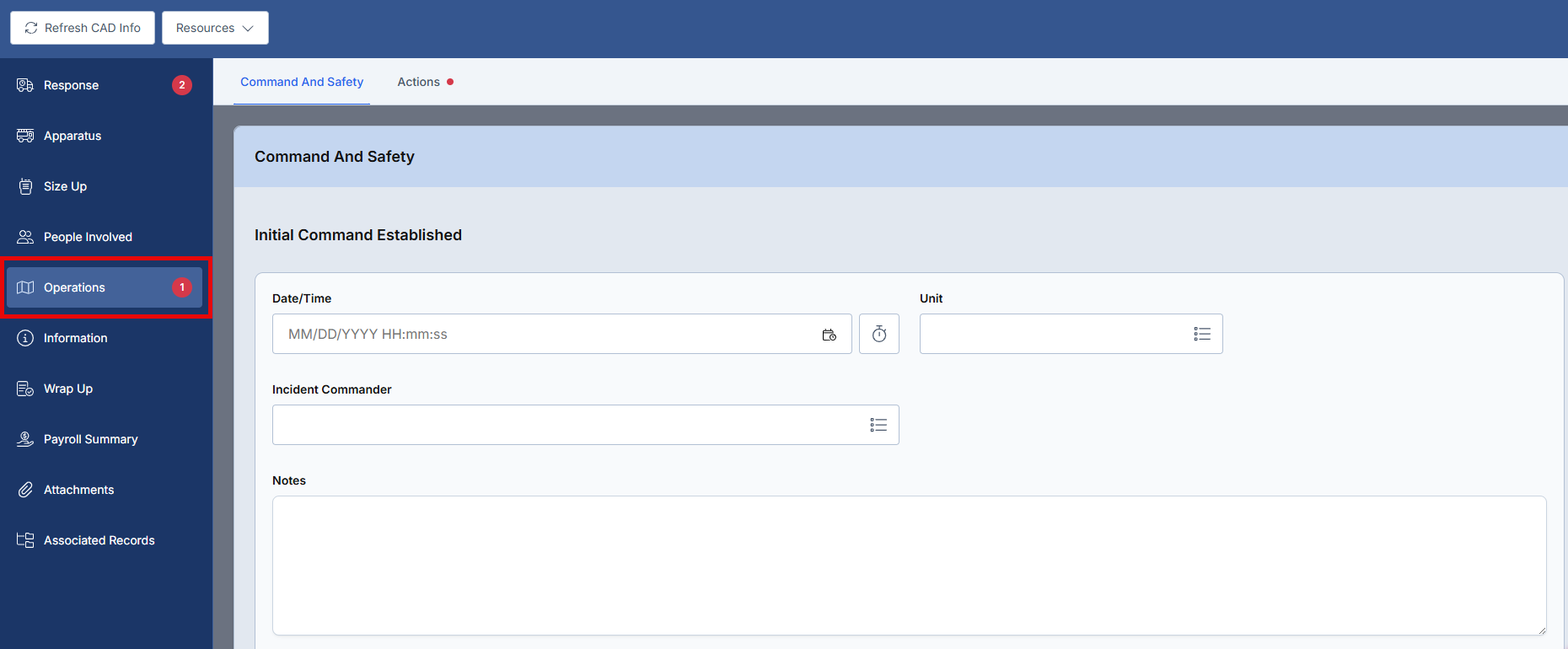
- After completing the Size-up section of the incident report, select Operations from the left-side navigation menu.
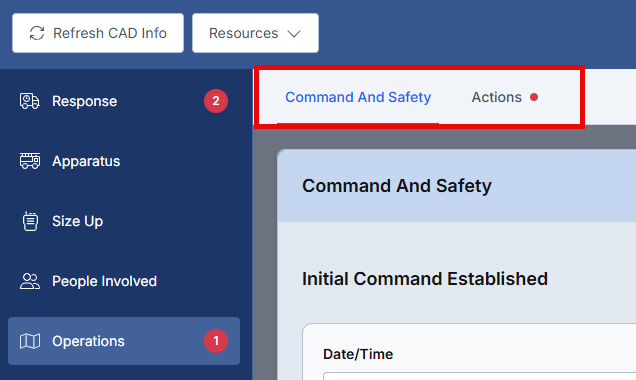
- The Operations section contains two primary areas:
- (A) Command and Safety: Documents incident command activities and operational safety information.
- (B) Actions: Records actions taken during the incident.
3. Document Command and Safety Information
- Within the Command and Safety subsection, complete the applicable fields:
- (A) Initial Command Established: Document when incident command was initially established.
- (B) Command Transferred: Record any transfers of incident command that occurred during the incident.
- (C) 360 Degree Size-up Completed: Document completion of the 360-degree size-up, when performed.
- (D) Operations Section: Record when the Operations Section was established during the incident.
- Enter the applicable incident command details in the available fields.
Important Note:
The Command and Safety subsection must be enabled in the department's Fire Incident Setup configuration to appear in incident reports.
4. Document Operational Branches and Resources
- When the Operations Section is activated, additional fields become available to document the operational structure used during the incident.
Enter the applicable Branches established during the incident.
- Complete the additional subsections as applicable:
- Staging Division: Document staging information associated with the incident.
Special Resources: Record specialized resources utilized during incident operations.
5. Document Actions Taken During the Incident
- Navigate to the Actions subsection of the Operations page.
- Review the available action options and document the applicable Overall Departmental Actions Taken during the incident.
- The Actions subsection displays three categories:
- (A) Overall Departmental Actions Taken: Actions performed by the department during the incident.
- (B) Unit Actions Taken: Actions performed by individual responding units. These are documented in the Apparatus section of the incident report.
- (C) Individual Actions Taken: Actions performed by individual personnel. These are also documented in the Apparatus section.
Verify that the selected departmental actions accurately reflect the activities performed during the incident.
6. Document Pertinent Negatives, If Applicable
- If no discernible action was taken during the incident, select the Pertinent Negatives button in the Actions subsection.
- Review the selection to ensure it accurately reflects the incident response.
Important Note: Use pertinent negatives only when applicable to the incident. If actions were performed, document those actions instead.
Best Practices
Do's
- Document command establishment immediately when incident command is initiated to ensure accurate timestamps.
- Record all command transfers with detailed notes explaining the reason for transfer and any relevant situational changes.
- Complete the 360° size up documentation if performed, as this provides valuable situational awareness information.
- Select actions taken in priority order, as only the first three will be sent to NFIRS for reporting.
- Document special resources deployed to maintain comprehensive resource tracking.
- Verify that the incident type in the Response section is correct before documenting actions, as this determines available action options.
- Include detailed notes in each subsection to provide context for after-action reviews and training purposes.
- Ensure PAR completion is documented when performed to maintain accountability records.
Don'ts
- Don't skip the Operations section even for routine calls, as it provides essential command and action documentation.
- Don't select more than necessary actions if only a few were actually performed—prioritize the most significant actions in the first three selections.
- Don't forget to document staging division discontinuation times, as this provides complete operational timeline information.
- Don't change the incident type after completing the Operations section without reviewing that the documented actions still align with the new incident type.
- Don't omit notes fields when additional context would benefit future review or training analysis.
Tips & Recommendations
- Establish a standard practice within your department for who documents command-level information versus unit-level actions to avoid duplication or gaps.
- Use the field navigation buttons at the top of the Operations section to move quickly between Command and Safety and Actions subsections, especially during complex incidents.
- When documenting actions for multi-unit responses, coordinate with other documenting personnel to ensure the first three actions selected accurately represent the overall department response.
- Consider creating department-specific documentation guidelines that define when Operation Section branches should be engaged and documented.
- Review completed Operations section documentation during after-action reviews to identify areas for improved real-time documentation practices.
Troubleshooting & FAQs
Q: Why are some action options not available when I try to document the incident?
A: The available action options are automatically filtered based on the incident type selected in the Response section. For example, if you selected "611 - Canceled En Route" as your incident type, only the canceled en route action will be available. If you need to select different actions, verify that the incident type in the Response section accurately reflects the incident nature. For medical calls, additional options appear, and for building fires, nearly all action options become available.
Q: I selected five actions taken during the incident, but I heard only three are sent to NFIRS. Which ones are reported?
A: The system transmits only the first three actions selected to NFIRS to comply with reporting standards. Select your actions in priority order, with the most significant or primary actions first. Review your selections to ensure the first three accurately represent the department's primary response activities for proper NFIRS reporting.
Q: How do I document a command transfer that happened multiple times during a long-duration incident?
A: The Command Transferred subsection allows you to document command transfers with date, time, receiving unit, new incident commander, and notes. For multiple transfers, document each transfer sequentially with detailed notes explaining the circumstances. This creates a complete chain-of-command record for the incident timeline.
Q: Where do I see the actions that individual units documented on their unit reports?
A: Unit-level actions documented by individual units are displayed in the Unit Actions area at the bottom of the Actions subsection. This provides visibility into what specific units documented while maintaining the separation between overall department actions and individual unit activities.
Q: Do I need to complete the Operations section for every incident, even routine calls?
A: Yes, the Actions subsection is a mandatory field and must be completed for all incidents. Even for routine calls or canceled responses, document the appropriate action taken. The system will limit available actions based on incident type—for example, canceled en route incidents will only show the canceled option. This ensures consistent documentation practices across all incident types.
Q: What should I document in the special resources field, and how detailed should it be?
A: Document any specialized resources deployed during the incident that were outside standard response assignments, such as hazmat teams, technical rescue units, air support, mass casualty resources, or mutual aid specialty units. Include sufficient detail to identify the resource type and deployment timeframe. This information supports resource utilization analysis and after-action reviews.