Purpose Statement
The Event Sign-Up feature allows department members to request participation in eligible events through the Events and Activities Module. This process provides a simple, self-service way for users to express interest in events while allowing event creators to review and confirm attendance, ensuring accurate participation tracking and staffing oversight.
Background Information
Event sign-up is commonly used for training sessions, meetings, and other activities where participation is voluntary or capacity-based. In First Due, event sign-up is only available for events that have been configured as Sign-Up Eligible by the event creator.
While events can be viewed from multiple Daily Operations views, the Sign Up functionality is exclusively available from the Calendar View. Once a user submits a sign-up request, the event creator must approve or deny the request before participation is confirmed.
Required Permissions
To sign up for an Event, users must have:
- Access to the Events and Activities Module
- Permission to view Daily Operations
- Permission to view Events on the Calendar
No administrative permissions are required to request event participation. Approval is managed by the event creator.
Video
Step-by-Step Guide
Navigate to Daily Operations
- Open the Events and Activities Module.
- Select Daily Operations.
Open the Calendar View
- Within Daily Operations, select the Calendar View.
- While events can be accessed from List, Daily, and Calendar views, the Sign Up option only appears in the Calendar View.
Locate a Sign-Up Eligible Event
- Use the available filters or search area at the top to narrow down events.
- Events configured for sign-up will display Sign Up Eligible at the bottom of the event on the calendar.
Request to Sign Up
- Select the event on the calendar.
- An event modal opens.
- Select the Sign Up button at the bottom of the modal.
- A confirmation message appears indicating your request has been submitted.
Your attendance request must be reviewed and approved by the event creator.
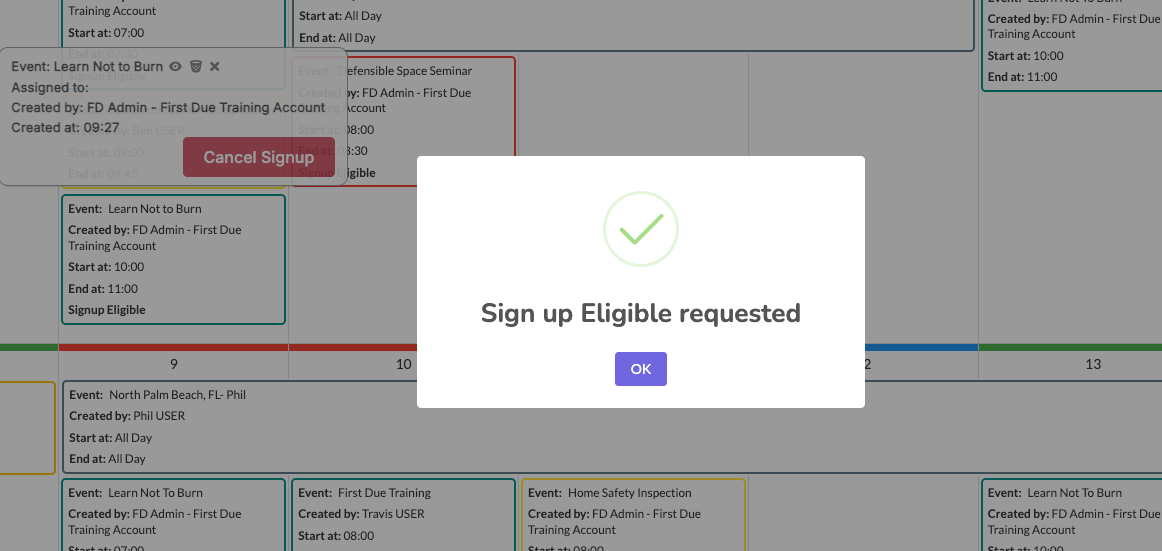
Cancel a Sign-Up Request
- Select the event again from the Calendar View.
- Select Cancel Request.
- A modal opens allowing you to include a cancellation reason (optional).
- Confirm the cancellation.
Best Practices
- Always use the Calendar View when signing up for events.
- Verify the event is marked Sign Up Eligible before attempting to request participation.
- Submit sign-up requests early to allow time for approval.
- Cancel requests promptly if you are unable to attend.
- Provide a cancellation reason when possible to assist event coordinators.
Troubleshooting & FAQs
Why don’t I see a Sign Up button?
- The event is not configured as Sign-Up Eligible or you are not viewing the Calendar View.
Can I sign up from the List or Daily View?
- No. Sign-up is only available from the Calendar View.
Is my attendance confirmed after signing up?
- No. The event creator must approve your request.
Can I cancel my request after signing up?
- Yes. Requests can be canceled from the Calendar View before approval.
Is a cancellation reason required?
- No. Providing a reason is optional.