Purpose Statement
Creating Events in the Events and Activities Module allows departments to document, track, and manage operational and administrative activities in a centralized location. The General Event Information section establishes the core details of an event, ensuring accurate scheduling, classification, and documentation for reporting, compliance, and operational awareness.
Background Information
Events are a foundational component of Daily Operations within First Due and are used by Fire and EMS agencies to capture activities such as training, meetings, public education, and special operations. Events can be created from multiple areas within Daily Operations and may be built from a template or created from scratch, depending on user permissions and department configuration.
While templates can streamline data entry, the general event creation process remains consistent. Understanding the General Event Information section ensures events are entered accurately and consistently, supporting downstream workflows such as checklists, participant tracking, payroll capture, and reporting.
Required Permissions
To create and edit Events, users must have:
- Access to the Events and Activities Module
- Permission to create and edit Events
- Permission to view Daily Operations
- Optional permission to use Event Templates, if enabled by the department
These permissions are commonly assigned to administrators, supervisors, training officers, and designated event coordinators.
Video
Step-by-Step Guide
Navigate to Daily Operations
- Open the Events and Activities Module.
- Select Daily Operations.
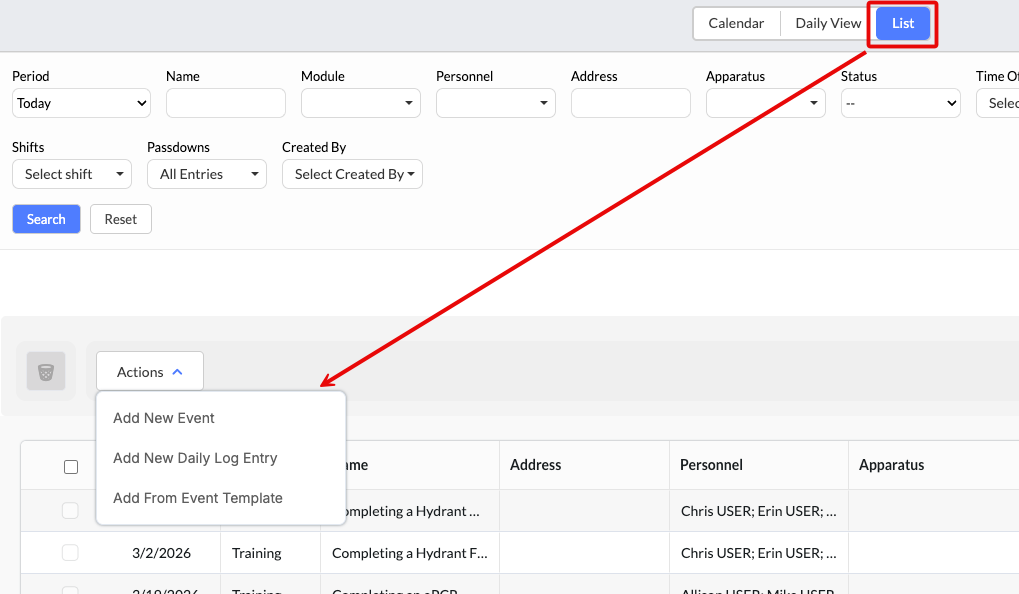
- Choose one of the following locations to create an Event:
- Actions dropdown in the List View
- Below the calendar in the Daily View
- Any date on the calendar view
Start a New Event
- From the Actions dropdown (List View), select Add New Event.
- A blank Event record will open for editing.
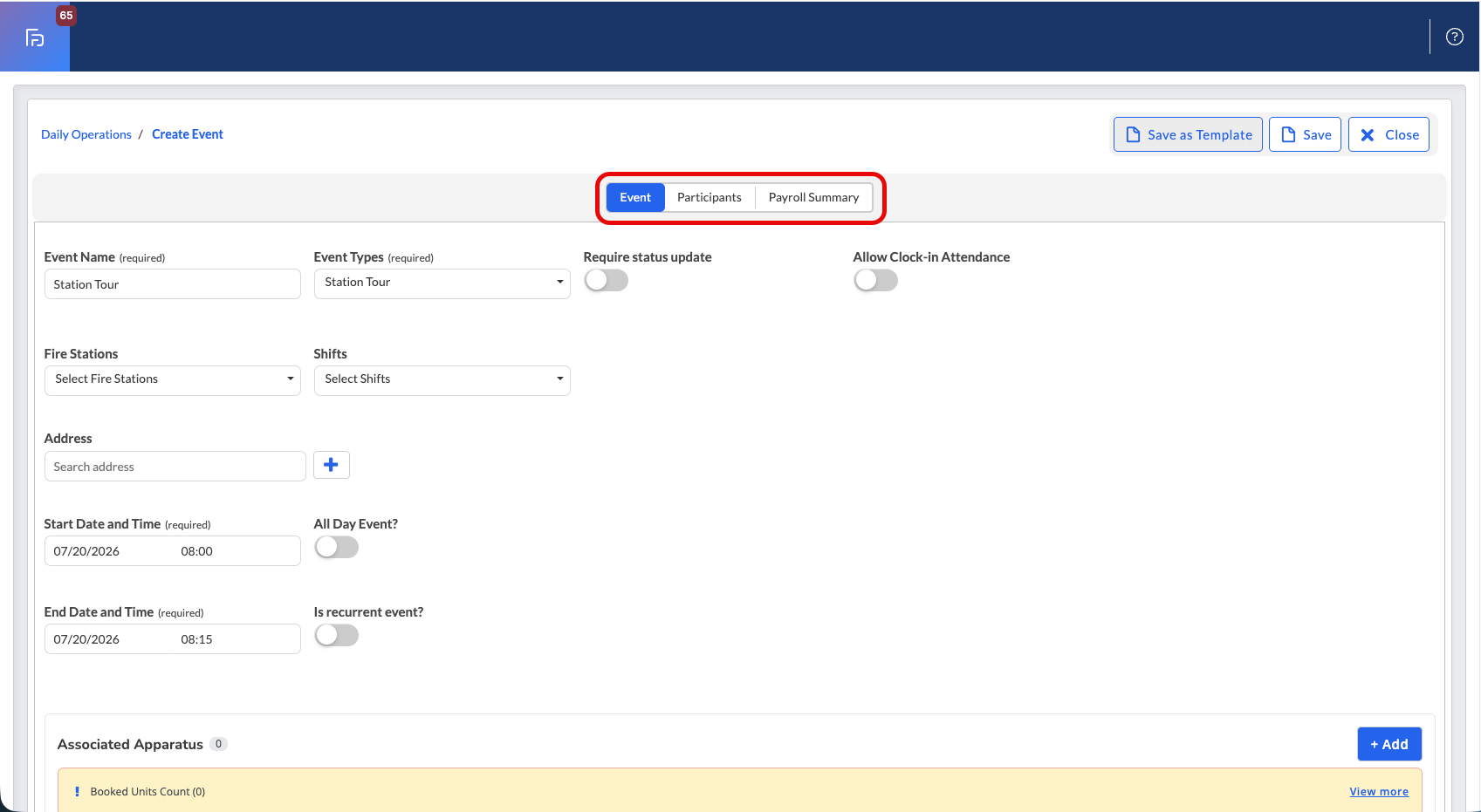
Note: Depending on department configuration, Events may include between two and four sections at the top of the screen.
- Event and Participants are always included.
- Checklist and Payroll sections may appear if enabled.
Complete General Event Information
Enter the following fields in the Event section:
- Event Name (Required Field)
- Clearly identifies the event
- Event Type (Required Field)
- Options are configured in Events Setup
- Selecting certain Event Types may automatically include a Checklist
- Status Update
- When enabled, requires the event creator to mark the event as Complete once it has ended
- Stations and Shifts
- Optional association fields
- Used for reporting and reference only
- Does not add personnel or assets to the participant list
- Address
- Begins searching your Occupancy Database as you type
- If no match is found, select the Add (blue) button to perform a Google address search
- Start Date and Time (Required Field)
- End Date and Time (Required Field)
- Defines the scheduled duration of the event
- All Day Event
- When toggled on, the time fields are disabled
- Recurring Event / No End Date
- Enables additional scheduling options for recurring events
- Refer to the related article on Recurring Events for detailed setup instructions
- If creating a recurring event and "No end date" is enabled the End Date field will be greyed out
- Apparatus Booking
- This feature will add in Apparatus along with being able to manage times for each. Please see the related Article on Apparatus Booking for a detailed review of the process.
- Event Attendees
- Allows entry of attendee counts by age group
- Automatically populates:
- Total Children
- Total Attendees
- Notes
- Used to capture detailed information or special instructions related to the event
- Attachments
- Upload files or documents relevant to the event, such as agendas, permits, or supporting materials
- Upload files or documents relevant to the event, such as agendas, permits, or supporting materials
Once all fields have been completed, select Save at the top to capture progress or move on to the other fields for creating an event (Participants, Payroll and Checklists)
Best Practices
- Use clear and consistent Event Names for easy identification and reporting.
- Select the correct Event Type to ensure proper classification and checklist inclusion.
- Only enable Status Updates if events require formal completion tracking.
- Use Apparatus, Station, and Shift associations to improve reporting accuracy.
- Attach relevant documentation at the time of creation to avoid missing information later.
Troubleshooting & FAQs
Why don’t I see the option to create an Event?
- Verify you have permission to create Events and access Daily Operations.
Why did a Checklist appear after selecting an Event Type?
- Some Event Types are configured to automatically include Checklists.
Does associating Apparatus or Stations add them as participants?
- No. These fields are for association and reporting purposes only.
Why are my time fields disabled?
- The All Day Event option has been enabled.
Where can I learn more about recurring events?
- Refer to the related Knowledge Base article on Recurring Events.