Purpose Statement
This article explains how to manage Off Roster requests received within the Shift Board. Off Roster requests are used to document overtime or activities not tied to a scheduled assignment, allowing departments to accurately track time for supplemental duties and special projects.
Background Information
Off Roster requests are typically submitted when a member is awarded overtime or when the department needs to document time for extracurricular or non-assignment-related activities.
Common examples include:
- Gear inspections
- SCBA inspections
- EMS supply management
- EMS education or training support
- Other department-approved activities outside standard shift assignments
These entries appear in a slightly grey format within the Off Roster section of the Shift Board until action is taken. Once reviewed, authorized personnel can approve or deny the request.
Required Permissions
Users managing Off Roster requests should have the following permissions:
- Scheduling - Access Scheduling
- Scheduling - Access Shift Board
- Scheduling - Approve Off Roster Requests
- Scheduling - Approve Others' Off Roster Requests
- Scheduling - Edit Personnel in the Off Roster Portion of the Shift Board
- Scheduling - Delete Personnel from the Off Roster Portion of the Shift Board
Permission requirements may vary based on role (e.g., supervisor, administrator).
Video
Step-by-Step Guide
Access the Shift Board
- Click the First Due logo.
- Select Scheduling.
Click Shift Board.
Locate the Off Roster Request
- Navigate to the Off Roster section.
- Identify the request displayed in a slightly grey entry, indicating it is pending review.
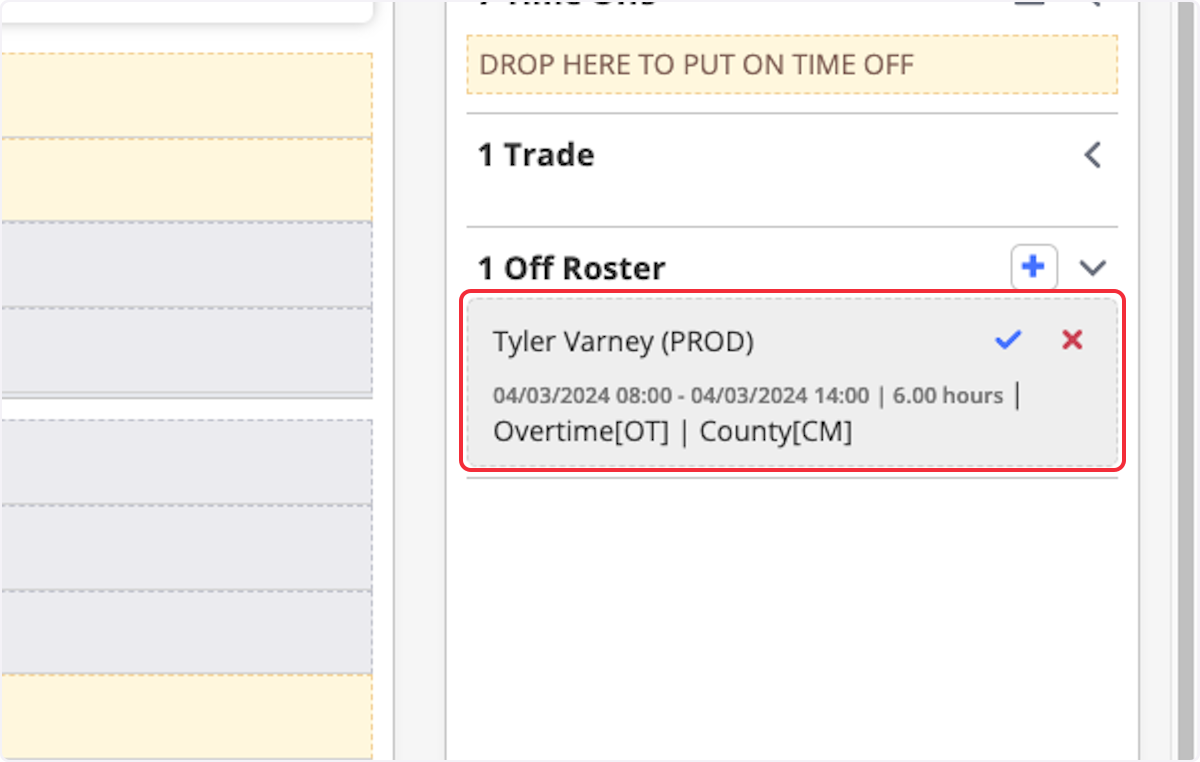
Approve or Deny the Request
- Click the ✔ (checkmark) to approve the request.
- Click the ✖ (X) to deny the request.
If denied:
- The request will disappear from the Off Roster section.
- The action will be recorded in the System Log for audit tracking.
Review an Approved Request
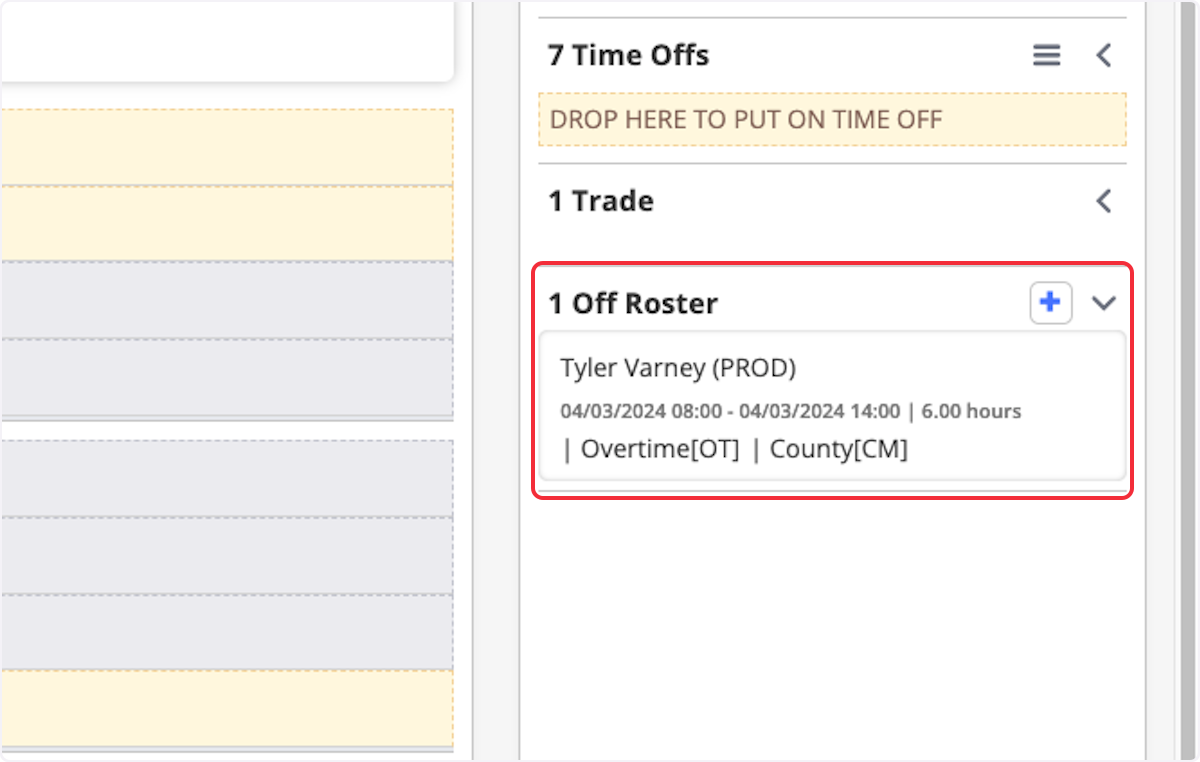
- Once approved, the entry will turn solid white.
- You can:
- View request details
- Edit the entry (if permitted)
- Delete the entry (if permitted)
Best Practices
- Review Off Roster entries daily to maintain payroll accuracy.
- Confirm that the activity aligns with department policy before approving.
- Use consistent naming or notes for extracurricular activities to improve reporting clarity.
- Avoid delaying approvals to prevent payroll discrepancies.
- Periodically audit the System Log for denied or modified entries.
Troubleshooting & FAQs
Q: Why does the Off Roster entry appear grey?
A: A grey entry indicates the request is pending approval and has not yet been validated.
Q: What happens when I deny an Off Roster request?
A: The request is removed from the Off Roster section and logged in the System Log for recordkeeping.
Q: I don’t see the approve/deny icons. Why?
A: You may not have the required permissions to manage Off Roster requests. Contact your system administrator to verify your access.
Q: Can I edit an Off Roster request after approval?
A: Yes, once approved (solid white entry), users with appropriate permissions can view, edit, or delete the request.