Setting up Preventative Maintenance for Locations
Purpose Statement
The purpose of this article is to demonstrate how to set up Preventative Maintenance (PM) for Locations. Preventative Maintenance automates recurring work orders to support station and facility upkeep using time-based and/or trigger-based schedules.
Background Information
Preventative Maintenance for Locations automatically generates work orders using:
A scheduled timeframe (date-based cadence)
A triggering event (when available in your configuration)
An optional OR condition to trigger on whichever occurs first
Common use cases include station inspections, alarm system checks, generator testing, HVAC filter changes, and recurring facility maintenance tasks.
Prerequisites:
Location records exist in Assets
Work Order Boards and Work Order Types are configured
Required Permissions
To complete this process, users typically need:
Assets: Setup (view/edit)
Preventative Maintenance: Create/Edit
Work Orders: View (Create/Edit recommended)
These permissions are typically assigned to admin, data-manager, or supervisor roles.
Video
Step-by-Step Guide
Step 1: Access Preventative Maintenance
There are two places to add Preventative Maintenance (PM) for Locations:
Step 2: Add a New Maintenance Schedule
- From either of the entry points above, click Add Maintenance (as shown above).
Step 3: Select the Locations Tab
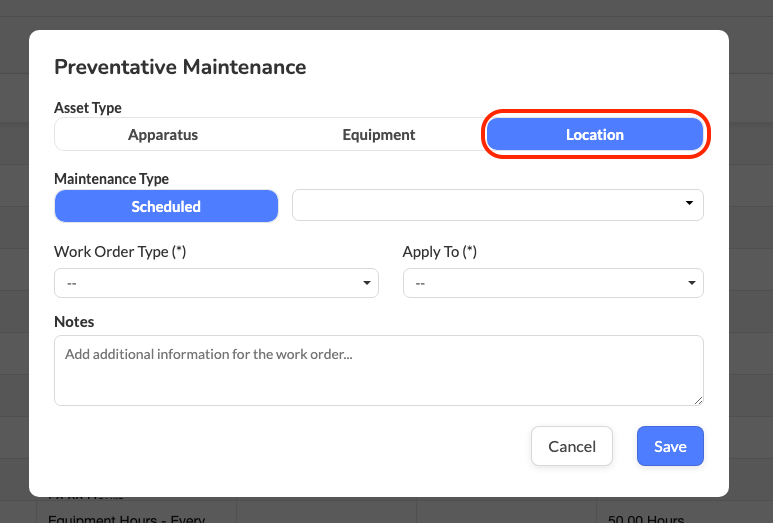
- In the Add Maintenance window, select the Locations tab.
Step 4: Choose How the PM Will Trigger
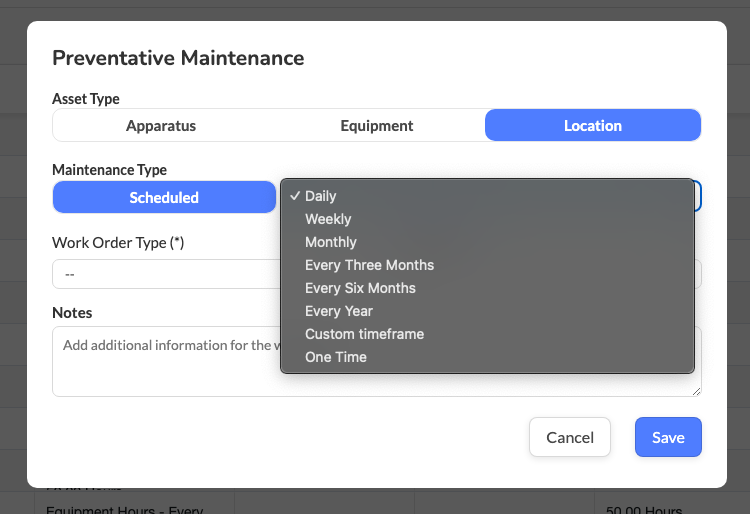
Preventative Maintenance work orders for Locations can only be set to Scheduled (a time-based cadence).
Step 7: Select the Work Order Type
In the Work Order dropdown, select the work order type that should be generated.

Step 8: Select the Location(s)
In the Location selector, choose the station/location(s) this PM should apply to.
Step 9: Save the Preventative Maintenance
Click Save.
The PM will now automatically generate work orders based on your configured schedule (for example: every quarter, every month, or a combined condition if enabled).
Best Practices
Use scheduled PMs for inspections, compliance checks, and recurring facility routines
Standardize Work Order Types for facility maintenance reporting
Review location PM schedules annually or after major station projects
Avoid duplicating PM schedules for the same location unless intentionally layered
Troubleshooting & FAQs
I don’t see a triggered option for Locations. Is something wrong?
Not necessarily. Some accounts only support scheduled PMs for Locations. Use timeframe-based scheduling.
PM isn’t generating a work order. What should I check?
Confirm the PM was saved successfully
Verify the condition values are valid
Ensure a Work Order Type is selected
Confirm the location is selected and active
Can I apply one PM to multiple locations?
Yes. You can select multiple locations in Step 8.
Related Articles
Setting up Preventative Maintenance for Locations
Purpose Statement The purpose of this article is to demonstrate how to set up Preventative Maintenance (PM) for Locations. Preventative Maintenance automates recurring work orders to support station and facility upkeep using time-based and/or ...Setting up Preventative Maintenance for Equipment
Purpose The purpose of this article is to demonstrate how to setup Preventative Maintenance for Equipment. Related Articles How to Change Preventative Maintenance Cycles for Individual Apparatus, Items of Equipment, and Stations Managing Preventative ...Setting up Preventative Maintenance for Equipment
Purpose Statement The purpose of this article is to demonstrate how to set up Preventative Maintenance (PM) for Equipment. Preventative Maintenance automates recurring work orders based on time and/or usage to improve readiness, reduce failures, and ...Setting up Preventative Maintenance for Equipment
Purpose Statement The purpose of this article is to demonstrate how to set up Preventative Maintenance (PM) for Equipment. Preventative Maintenance automates recurring work orders based on time and/or usage to improve readiness, reduce failures, and ...Setting up Preventative Maintenance for Apparatus
Purpose Statement The purpose of this article is to demonstrate how to set up Preventative Maintenance (PM) for Apparatus. Preventative Maintenance automates recurring work orders based on time and/or usage to keep fleet vehicles service-ready and ...