Purpose
This article is designed to show you how to build an Ad Hoc report to export your occupancies for Brycer TCE.
Instructions
- Log in to your First Due Account and navigate to the Reports Module.
- Select Ad-Hoc Reports.
- Select Add Report to create a report.
- Under the Basic information section:
- Name your Report Ex: "Occupancies for Brycer TCE
- In the Module dropdown select Occupancies
- In the Data Source Configuration section, select Occupancies from the list. ("Occupancies" can easily be found by typing the name in the open box)
- In the Report Type section select Tabular Report.
- In the Columns sections select the following items:
- Occupancy Id
- Address 1
- Address 2
- City
- State
- Zip
- Latitude
- Longitude
- Business Name
- Property Use
- Property Class
Once selected use thesymbol to move them over
- In the Criteria section select the
and enter: "Address 1 is not null"
- In the Settings section select the following options:
- Document Orientation > Portrait
- Sharing > Everyone
- Allow other users to apply changes to this report > Select
- Select the Play button to run the report.
- Once you have ran the report you will need to download the report using the
Icon.
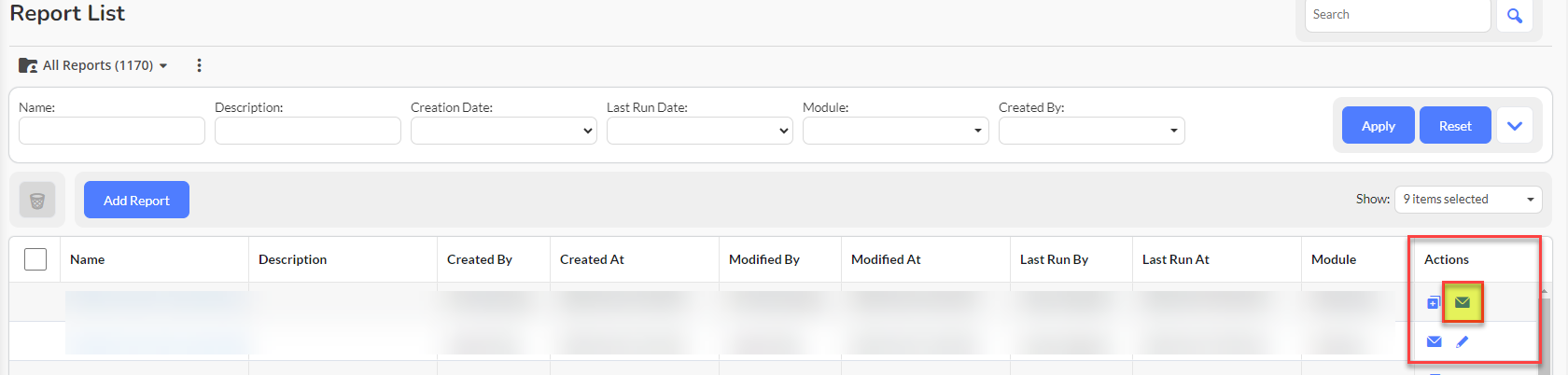
If your report contains more than 20,000 rows you will need to email the report to yourself from the Actions column in Reports.