Warning:
Using Summary Columns as Criteria will be released to Test on September 1st, and to Production on September 15th.
Purpose Statement
The Criteria tab allows users to define which records and summarized results are included in an Ad-Hoc Report. Criteria narrow report data based on selected fields, values, date ranges, operators, logical conditions, Custom Columns, and Summary Columns.
Using Criteria helps ensure reports contain only the information needed for analysis, compliance, operational oversight, and decision-making.
In Summary Reports, users can also apply Criteria to calculated Summary Columns. This allows departments to identify grouped results that meet specific conditions, such as addresses with more than one call, employees with overdue training activity, or apparatus with more than a specified number of maintenance events.
Background Information
Criteria filtering is completed after configuring the report’s data source, selecting report columns, and defining sort settings.
Criteria can be applied to any Data Source Field available in the report’s Data Source Configuration. The field does not need to be displayed as a visible report column.
Criteria can also be applied to Custom Columns created in a Tabular Report.
For Summary Reports, Criteria can be applied to Summary Columns created from the report’s grouped data. Summary Column Criteria evaluate the calculated result for each group rather than individual source records.
This allows users to filter records and summarized results without adding unnecessary information to the final report output.
Common uses for Criteria include:
- Filtering incident records by date range
- Excluding incomplete training records
- Reporting on specific apparatus, stations, or personnel
- Identifying ePCR transmission issues
- Reviewing compliance-related information
- Monitoring operational performance
- Creating recurring reports for specific time periods
- Identifying locations with multiple calls
- Finding employees with more than a specified number of overdue training records
- Reporting on apparatus with high maintenance activity
- Reviewing grouped workload or performance metrics
Data Source Field Criteria and Summary Column Criteria
Data Source Field Criteria evaluate individual records before report results are summarized.
Summary Column Criteria evaluate calculated values produced by a Summary Report. These conditions determine which grouped results appear based on the value of the selected Summary Column.
For example:
-
Incident Date Between January 1 and December 31limits the Data Source records included in the report. -
Count of Incidents Greater 1limits the summarized output to groups containing more than one qualifying incident.
A report can use both Data Source Field Criteria and Summary Column Criteria. Data Source Field Criteria first establish which records are available to the report. Summary Column Criteria then evaluate the calculated values produced from those records.
Criteria vs. Filters
Criteria and Filters are related, but they serve different purposes within Ad-Hoc Reporting.
| Feature | Criteria | Filters |
|---|---|---|
| Where configured | Criteria tab in the report builder | Filters tab or report output |
| Purpose | Establishes permanent report boundaries | Allows temporary adjustments to report output |
| Saved with the report setup | Yes | Default Filters may be saved, but adjustments made in the report output are temporary |
| Can be changed in report output | No | Yes |
| Can override the other | Criteria determine which records and summarized results the report can return | Filters cannot override Criteria |
Criteria establish the complete set of records and summarized results that a report is permitted to return. Filters can further narrow those results, but they cannot expand the report beyond the configured Criteria.
Example
Suppose the Criteria tab limits a report to incidents from 2026. A user cannot apply a Filter in the report output to view incidents from 2025 because those records fall outside the permanent report boundaries established by the Criteria.
A Filter could narrow the 2026 results to a specific month, station, apparatus, or incident type, but it could not include records from another year.
If the report also includes a Summary Column Criterion of Count of Incidents Greater 1, only grouped results containing more than one qualifying 2026 incident are displayed.
Default Filters may be a better option for adjustable date ranges or reporting periods when users need flexibility in the report output. This functionality is covered in more detail in the Ad-Hoc Reporting: Filters article.
Required Permissions
Users must have access to the Reports Module and Ad-Hoc Reporting functionality.
Additional access may be required based on the data source, module, or records included in the report. Depending on the fields used in the Criteria tab, users may need access to data from areas such as:
- Incidents
- Training
- Inspections
- ePCR
- Personnel
- Apparatus
A user’s available data sources, Data Source Fields, Custom Columns, Summary Columns, and records may be limited by their assigned role and module permissions.
If a user cannot access a required data source, field, Custom Column, Summary Column, or record, they should contact their system administrator to review their Reports Module, Ad-Hoc Reporting, role, and module permissions.
Video
Step-by-Step Guide
1. Access the Criteria Tab
- Navigate to Reports Module > Ad-Hoc Reports.
- Create a new report or edit an existing report.
- Complete the Data Source Configuration, Columns, and Sort tabs.
- Select the Criteria tab or select Next at the bottom of the report builder.
2. Add Criteria Using a Data Source Field
- Select the plus icon (+) to add a criterion.
- Select a field from the Data Source Field list.
- Select the operator that defines how the field should be evaluated.
- Enter or select the appropriate value for the criterion.
The selected Data Source Field does not need to be displayed as a column in the report. Any available field from the configured data source can be used as Criteria.
3. Add Criteria Using a Custom Column
Custom Columns created in the report can also be used as Criteria.
- Select the plus icon (+) to add a criterion.
- Open the Data Source Field list.
- Scroll to the bottom of the list to locate the available Custom Columns.
- Select the Custom Column you want to use.
- Select the appropriate operator.
- Enter or select the value for the criterion.
📝 Important Note:
A Custom Column must already exist in the report before it can be selected as Criteria.
4. Create Row Groups and Summary Columns
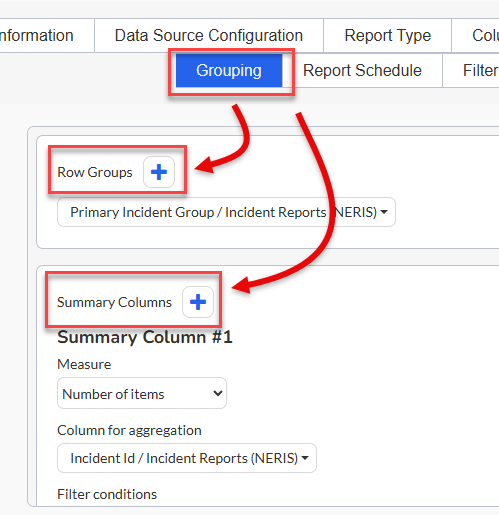
To use a Summary Column as Criteria, the Summary Report must first contain the applicable Row Groups and Summary Column.
For instructions, see:
- Ad-Hoc Reporting: Summary Grouping - Row Groups
- Ad-Hoc Reporting: Summary Grouping - Summary Columns
After creating the applicable Summary Column, return to the Criteria tab.
5. Add Criteria Using a Summary Column
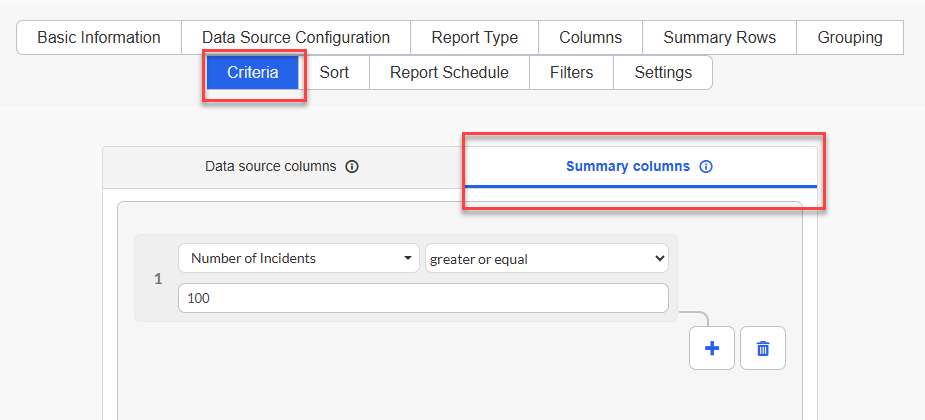
- Select the plus icon (+) to add a criterion.
- Open the list of available Criteria fields.
- Locate and select the applicable Summary Column.
- Select the appropriate operator.
Summary Column Criteria use the same Criteria operators available when creating regular Criteria.
- Enter or select the value that the Summary Column must meet.
- Run or preview the report.
- Confirm that the grouped results reflect the Summary Column Criterion.
For example, selecting Count of Incidents = Greater 1 displays only grouped results with more than one qualifying incident.
6. Add Multiple Criteria
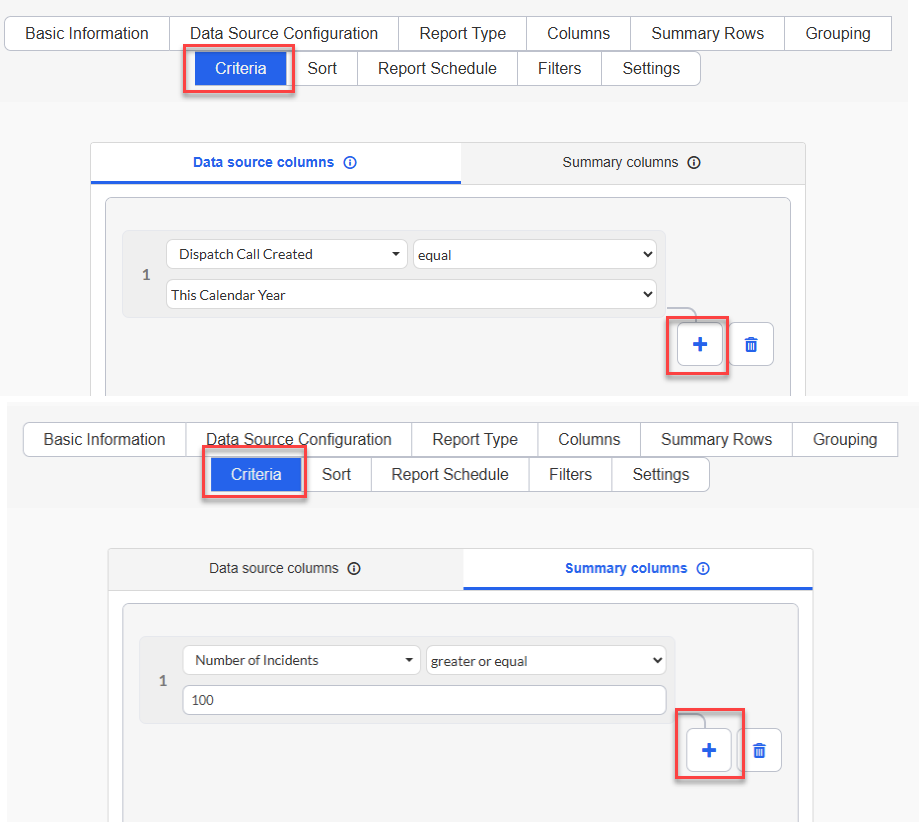
- Select the plus icon (+) again to add another criterion.
- Configure the field, operator, and value for the additional criterion.
- Select AND or OR between the Criteria:
- AND: Both conditions must be met.
- OR: At least one condition must be met.
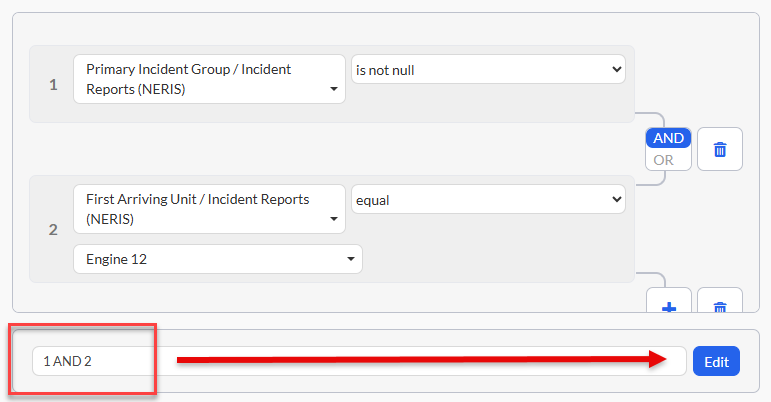
- Review the expression displayed below the Criteria.
A report can contain:
- Multiple Data Source Field Criteria
- Multiple Custom Column Criteria
- Multiple Summary Column Criteria
- A combination of the available Criteria types
For example:
- Dispatch Call Created = This Calendar Year
- Apparatus = Engine 12
Using 1 AND 2 returns only grouped results that meet both conditions.
7. Edit a Criteria Expression
- Select Edit beside the expression when more complex logic is required.
- Add or adjust parentheses and the AND or OR operators.
- Select Validate and Save.
Manual expression editing is most commonly needed when a report contains three or more Criteria with a combination of AND and OR logic.
Data Source Field, Custom Column, and Summary Column Criteria can be included in the same expression.
8. Continue Configuring the Report
- Confirm that all Criteria, values, and expressions are correct.
- Continue to the next applicable report configuration tab.
- Run the report.
- Review the results and confirm that the report includes only records or summarized groups that meet the configured Criteria.
Operator Reference
Criteria operators determine how the selected field or column is compared against the value entered by the user.
The same Criteria operators are used when creating Criteria with:
- Data Source Fields
- Custom Columns
- Summary Columns
The operators available for a Criterion are determined by the field or column selected.
When an operator requires a value, enter or select the applicable value after choosing the operator.
Relative Date Criteria
Relative date Criteria allow a report to automatically evaluate records based on a period relative to the date the report is run.
This is useful for recurring or scheduled reports because the applicable date period updates automatically each time the report runs.
When using any Next or Last operator, an additional button is available that allows you to choose whether the current day is included in the date range.
- Enable the option when today should be included.
- Leave the option disabled when today should not be included.
For example, a Last or Next date Criterion can return different results depending on whether the current day is included in the selected period.
Understanding AND / OR Logic
AND Logic
AND requires every connected condition to be true.
For example:
Year Equal 2026Station Equal Station 1
Expression:
1 AND 2
The report includes only records that meet both Criteria.
OR Logic
OR requires only one connected condition to be true.
For example:
Station Equal Station 1Station Equal Station 2
Expression:
1 OR 2
The report includes records that meet either Criterion.
Create a Complex Expression
Parentheses control how Criteria are grouped and evaluated.
For example, a department that transitioned between reporting formats may need a report containing records from a specific year that match either of two incident-type Criteria.
Criteria:
- Year Equal 2025
- NERIS Primary Incident Type Equal Fire
- NFIRS Incident Type Equal 100 Series
The following expression is too restrictive:
1 AND 2 AND 3
It requires a record to meet all three conditions.
Use:
1 AND (2 OR 3)
This includes records from 2025 that meet either the NERIS Criterion or the NFIRS Criterion.
To update the expression:
- Select Edit beside the expression.
- Enter
1 AND (2 OR 3). - Select Validate and Save.
Combine Data Source Field and Summary Column Criteria
A report can combine regular Data Source Criteria with Criteria applied to calculated Summary Columns.
For example:
Incident Date Between January 1 and December 31, 2026Count of Incidents Greater 1Average Response Time Greater 10
Expression:
1 AND (2 OR 3)
The Data Source Criterion limits which records are available to the report, while the Summary Column Criteria determine which summarized groups meet the selected conditions.
Use Case Examples
Incident Reporting
Criteria can be used to:
- Limit incidents to a specific reporting period.
- Report on a specific station.
- Include or exclude selected apparatus.
- Limit results by incident type or disposition.
- Create recurring reports using relative date Criteria.
Training Records
Criteria can be used to:
- Exclude incomplete records.
- Report on a specific training objective.
- Limit results to a training date range.
- Report on a specific instructor or employee.
- Identify records that meet a Custom Column condition.
ePCR Transmission Monitoring
Criteria can be used to:
- Identify records based on transmission attempts.
- Review transmissions from a selected reporting period.
- Limit results by transmission status.
Inspections
Criteria can be used to:
- Identify inspections within a selected date range.
- Report on a specific inspection type.
- Include or exclude selected statuses.
- Limit results to specific districts.
Summary Column Criteria
Summary Column Criteria can be used to identify grouped results such as:
- Addresses with multiple incidents
- Stations exceeding a selected incident count
- Employees with multiple overdue training records
- Apparatus with a selected level of maintenance activity
- Groups meeting a calculated training-hours threshold
- Groups meeting a calculated response-time condition
Best Practices
Do
- Use Criteria to establish permanent boundaries for a report.
- Use relative date Criteria for recurring or scheduled reports when appropriate.
- Review whether the current day should be included whenever using a Next or Last operator.
- Test Criteria before saving or scheduling a report.
- Review AND and OR relationships whenever multiple Criteria are used.
- Use Data Source Fields as Criteria even when they do not need to appear in the report output.
- Use Custom Columns as Criteria when a calculated or customized report value needs to determine which records are returned.
- Validate manually edited expressions.
- Use Default Filters instead of Criteria when users need to adjust values from the report output.
- Give Summary Columns clear, descriptive names.
- Confirm that a Summary Column returns the expected calculation before using it as Criteria.
- Run the report after adding Summary Column Criteria to verify the expected grouped results.
- Review Criteria after removing or replacing a Custom Column or Summary Column referenced by the report.
Do Not
- Add unnecessary Criteria that may exclude valid records.
- Assume multiple Criteria are connected by the correct logical operator.
- Save a manually edited expression before validating it.
- Use Criteria for values users need to change regularly from the report output.
- Assume Filters can return records excluded by Criteria.
- Assume a Summary Column Criterion evaluates individual Data Source records.
- Remove a Custom Column or Summary Column without reviewing Criteria that reference it.
- Assume creating a Summary Column automatically applies Criteria to it.
- Use a Summary Column as Criteria before confirming that it returns the expected calculated value.
- Forget to review the current-day option when using Next or Last date operators.
Troubleshooting & FAQs
Why does my report return no results after I add Criteria?
Confirm that the selected values exist in the data source. Review whether the Criteria are too restrictive and verify the AND and OR relationships. For complex expressions, confirm that all parentheses and Criterion numbers are correct.
When using Summary Column Criteria, temporarily remove the Summary Column condition and run the report again to confirm that the underlying report is returning the expected results.
Can I filter by a Data Source Field that is not displayed in the report?
Yes. Criteria can use an available field from the configured data source even when that field is not selected as a visible report column.
Can I use a Custom Column as Criteria?
Yes. Custom Columns created in the report are available at the bottom of the Data Source Field list when adding Criteria.
Why do I not see my Custom Column in Criteria?
Confirm that the Custom Column has already been created in the report. Then open the Data Source Field list and scroll to the bottom to locate the available Custom Columns.
Can I use a Summary Column in Criteria?
Yes. After the applicable Summary Column has been created, it can be selected when adding Criteria.
Why do I not see my Summary Column in Criteria?
Confirm that the applicable Row Groups and Summary Column have been created before returning to the Criteria tab.
For additional instructions, see:
- [Creating Row Groups in Ad-Hoc Reports – ARTICLE LINK PLACEHOLDER]
- [Creating Summary Columns in Ad-Hoc Reports – ARTICLE LINK PLACEHOLDER]
Can I apply Criteria to more than one Summary Column?
Yes. Each applicable Summary Column can be added as a separate Criterion. Use AND, OR, and parentheses to control how the conditions are evaluated.
Which operators are available for a Summary Column?
Summary Column Criteria use the same Criteria operators as regular Criteria. Select the Summary Column and then choose the applicable operator from the available options.
Does Summary Column Criteria filter the underlying individual records?
No. Summary Column Criteria evaluate the calculated result for the summarized group. Data Source Field Criteria determine which individual records are included before the summary calculation is performed.
Can I combine Data Source Field Criteria and Summary Column Criteria?
Yes. A report can use Data Source Field Criteria to determine which records are included and Summary Column Criteria to determine which summarized groups are returned.
What does the current-day option do for Next and Last Criteria?
When using a Next or Last operator, you can choose whether the current day is included in the relative date period. Enable the option when today should be included or leave it disabled when the relative period should exclude today.
Are Criteria saved with the report?
Yes. Criteria are saved as part of the report configuration and apply whenever the saved report runs.
Can a user change Criteria from the report output?
No. Criteria are configured in the report builder and cannot be changed from the report output. Filters can be adjusted from the output when available.
Can Filters override Criteria?
No. Filters can only narrow the records and summarized results allowed by the Criteria. They cannot return records or groups outside the boundaries established by the Criteria.
Should I use Criteria or Default Filters for a date range?
Use Criteria when the report must remain within a defined reporting boundary. Use Default Filters when users need the ability to adjust the reporting period from the report output.
Why is my expression invalid?
Verify that:
- Every opening parenthesis has a closing parenthesis.
- The expression references valid Criterion numbers.
- AND or OR appears between Criterion references.
- No Criterion numbers were accidentally removed.
- All referenced Data Source Fields, Custom Columns, and Summary Columns still exist.
Then select Validate and Save again.
How do relative date operators affect scheduled reports?
Relative date operators recalculate each time the report runs. If the Criterion uses a Next or Last operator, also verify whether the current-day option is configured appropriately for the report.
Why did a previously working report stop returning results?
A selected value may have changed, the underlying data may have changed, or a Custom Column or Summary Column referenced by the Criteria may have been removed or modified. Review each Criterion against the current report configuration and data.