Purpose Statement
This article explains how to add a new EMS station in the Assets module and configure it within EMS Setup in First Due.
By creating a station in Assets and configuring its location type in EMS Setup, departments can maintain accurate station information, including addresses, contact details, and location classifications.
Background Information
EMS stations are initially created as locations within the Assets module. Once a location has been created, it can be configured as an EMS station through the Instant Documentation > EMS Setup module.
This process allows departments to:
Create and maintain station location records.
Store station addresses, county information, and contact details.
Include additional information such as NERIS/NFIRS identifiers, fire zones, and census tracts when applicable.
Upload station images for easier identification.
Classify locations as EMS stations.
Add multiple contact numbers, including fax numbers.
Important: A station must first be created in the Assets module before it can be configured in EMS Setup using the workflow described below.
Required Permissions
Users must have the appropriate permissions to access and manage locations within the Assets module and station configurations within Instant Documentation > EMS Setup.
The following capabilities are needed:
Access to the Assets module.
Ability to create locations within the Locations List.
Access to Instant Documentation and EMS Setup.
Ability to edit station configurations within EMS Setup.
Note: The exact permission names and settings could not be verified from the provided transcript. Administrators should confirm the required permissions in First Due's role and permission settings.
Video
Step-by-Step Guide
Step 1: Navigate to the Locations List
1. From the First Due dashboard, locate and open the Assets module.
2. Within Assets, select Locations List.
- Be sure to select Locations List, not Location Overview.
3. The Locations List will display existing locations associated with your department.
Step 2: Create a New Station Location
1. From the Locations List, select Add New Location.
2. Verify the department associated with the new location.
3. Complete the required location fields:
Location Name or Number: Enter the station name or number (e.g., Station 18).
Address: Enter the station's full physical address.
County: Select or enter the county where the station is located.
4. Complete any additional applicable fields, such as:
Census Tract
NFIRS or NERIS ID
Fire Zone
Phone Number
Other available location details
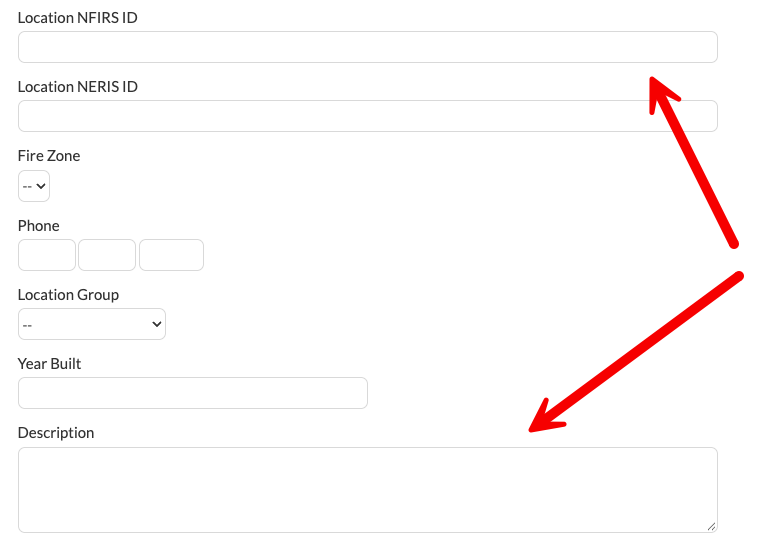
Step 3: Upload a Station Image (Optional)
1. Within the location creation form, locate the image upload field.
2. Select Choose File.
3. Browse your device and select an image of the station.
4. Confirm that the image has been attached to the location record.
Note: Adding an image is optional but can help users visually identify station locations.
Step 4: Save the New Station Location
1. Review the entered information for accuracy.
2. Select Create to save the new location.
3. Confirm that the newly created station appears in the Locations List.
Step 5: Navigate to EMS Setup
1. Return to the main module navigation menu.
2. Select ePCR module.
3. Open EMS Setup.
4. Within EMS Setup, select Stations.
5. Locate the station that was created in the Assets module.
Step 6: Configure the Station Location Type
1. Find the newly created station in the Stations list.
2. Navigate to the Actions column on the far right.
3. Select the Pencil (Edit) icon associated with the station.
4. In the station configuration window, locate the Location Type field.
5. Select EMS Station as the location type.
6. Verify the information carried over from the Assets module, including:
Station Name
Station Address
Phone Number (if previously entered)
Note: These details are populated from the location record created in Assets.
Step 7: Add Additional Contact Numbers (Optional)
1. Within the station configuration window, locate the contact number section.
2. Enter an additional phone number, such as a fax number.
3. Select the appropriate contact type from the available options.
- Example: Fax.
4. To add more contact numbers, select the Plus (+) icon.
5. Repeat the process for any additional contact numbers.
6. If you do not need to add another contact number, use the Back button to exit that entry option, as demonstrated in the video.
Step 8: Save the EMS Station Configuration
1. Review the station configuration details.
2. Confirm that Location Type is set to EMS Station.
3. Verify any additional contact numbers.
4. Select Save to apply the configuration.
5. The station has now been created in Assets and configured as an EMS station within EMS Setup.
Best Practices
- Use consistent station naming conventions: Follow your department's established naming or numbering structure to make stations easier to identify.
- Verify address information: Ensure the physical address and county are correct when creating a location.
- Complete applicable optional fields: Enter additional information such as census tracts, fire zones, and reporting identifiers when available.
- Add station images: Use clear, recognizable images to help distinguish station locations.
- Verify imported information: When configuring the station in EMS Setup, confirm that the name, address, and phone number carried over correctly from Assets.
- Select the correct location type: Ensure the station is classified as an EMS Station when appropriate.
- Maintain accurate contact information: Add applicable contact numbers and assign the correct contact type to each.
- Avoid duplicate station records: Review existing locations before creating a new station.
Troubleshooting & FAQs
Why can't I find the Locations List in the Assets module?
Confirm that you have opened the Assets module and are looking for Locations List, rather than Location Overview. If the option is unavailable, contact your administrator to verify your module access and permissions.
Why isn't my newly created station appearing in EMS Setup?
First, confirm that the station was successfully created in the Assets module. Then navigate to Instant Documentation > EMS Setup > Stations and look for the station. If it is still missing, contact your administrator or First Due Support for assistance.
Do I need to enter the station address again in EMS Setup?
No. The station name, address, and any phone number entered during location creation are brought into the EMS Setup configuration window.
Can I add more than one phone number to an EMS station?
Yes. Use the Plus (+) icon in the station configuration window to add additional contact numbers and assign their corresponding types.
Is uploading a station image required?
No. Uploading an image is optional.
Can I create a station directly in EMS Setup?
The workflow demonstrated in this article begins by creating the station in the Assets module and then configuring it in EMS Setup. Other creation methods are not covered in the provided training.
What should I do if I cannot edit a station?
Verify that your user account has the necessary permissions to edit station configurations. Contact your First Due administrator if the edit option is unavailable.
What happens if I do not select EMS Station as the location type?
The station will not have the EMS Station classification demonstrated in this workflow. Verify that the correct location type is selected before saving.