Purpose Statement
The QA/QI email notification feature enables Quality Assurance and Quality Improvement oversight of fire incident documentation by automatically alerting designated personnel when incidents are marked incomplete. This feature streamlines the quality control process, ensures timely incident report corrections, and maintains documentation accuracy by facilitating clear communication between field personnel and quality reviewers.
Background Information
Quality Assurance and Quality Improvement (QA/QI) processes are critical for maintaining accurate fire incident documentation and ensuring compliance with reporting standards. When incidents are marked as incomplete, designated personnel need immediate notification to review and provide guidance on necessary corrections.
Common Use Cases:
- Battalion chiefs reviewing incident reports for accuracy and completeness
- Training officers identifying documentation gaps for crew education
- Data managers ensuring compliance with state and federal reporting requirements
- Quality improvement committees tracking documentation trends
Prerequisites:
- Fire Incident Setup access
- Appropriate administrative permissions
- Identified QA/QI personnel with valid email addresses in the system
Required Permissions
To enable and configure QA/QI email notifications, users must have:
- Administrator or Fire Incident Setup permissions
- Access to the Incident Documentation configuration area
- Ability to modify General Settings within Fire Incident Setup
Field users marking incidents as incomplete do not require special permissions beyond standard incident documentation access.
Video
Step-by-Step Guide
Step 1: Access Fire Incident Setup
Navigate to Fire Incident Setup within the Incident Documentation module and select the General category.
Step 2: Enable QA/QI Notifications
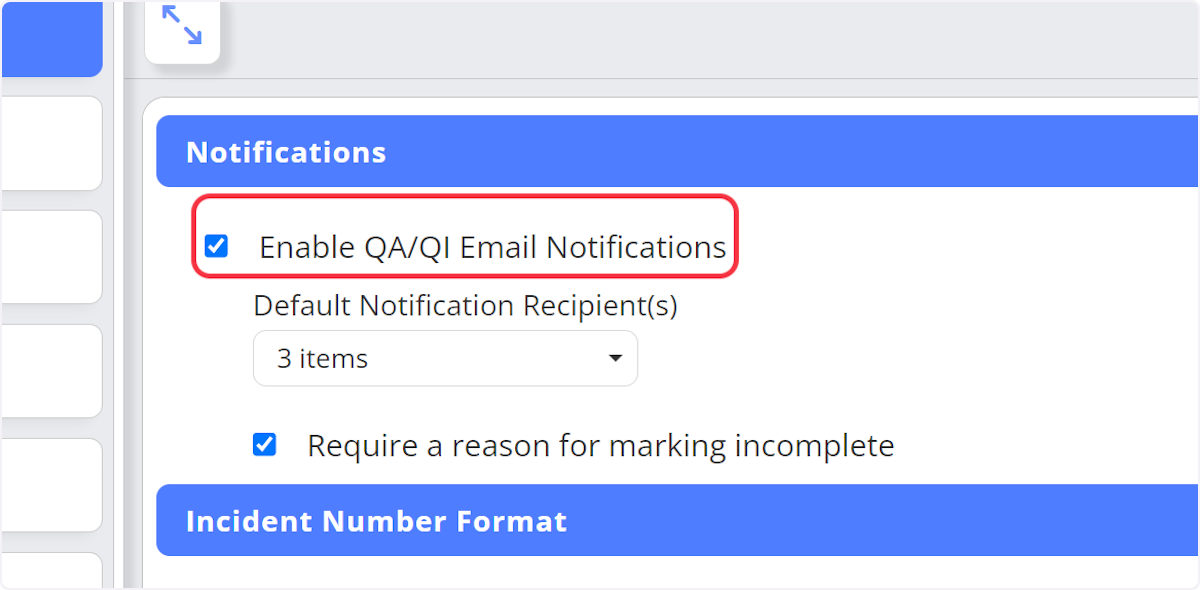
In the Notifications section, toggle the option to Enable QA/QI email notifications.
Step 3: Select Notification Recipients
From the dropdown menu, select the personnel who will receive email notifications when an incident is marked incomplete. You can designate multiple recipients such as battalion chiefs, training officers, or quality improvement coordinators.
Step 4: Configure Reason Requirement (Optional but Recommended)
Enable the option to require a reason why the incident was marked incomplete. This ensures the recipient understands what information is missing or what corrections are needed.
Note: Requiring a reason significantly improves the efficiency of the correction process by providing clear guidance to the quality reviewer.
Step 5: Save Configuration
Click Save to apply your notification settings.
Step 6: Understand the Incomplete Notification Process
When a field user marks an incident as incomplete:
- An email notification is automatically sent to the designated recipients
- If "require a reason" is enabled, the user must provide a description before the notification can be sent
- The email includes the incident details and the reason for marking it incomplete
Step 7: Complete Incident Notification (Optional)
Once the recipient corrects the incident and marks it as complete, a modal displays offering the option to send a notification email back to the authorized user. While not required, this notification can be used to explain actions taken or corrections made, closing the communication loop.
Best Practices
Do:
- Require a reason for marking incidents incomplete to improve communication efficiency
- Designate multiple qualified personnel to ensure timely review coverage
- Establish standard descriptions for common incomplete reasons (e.g., "Missing patient refusal signature," "Incomplete apparatus times")
- Use the completion notification to provide constructive feedback to field personnel
- Review notification recipients quarterly to ensure the list remains current
Don't:
- Leave the recipient list empty after enabling notifications
- Use vague descriptions when marking incidents incomplete
- Disable the "require reason" option unless absolutely necessary
- Forget to communicate this new process to field personnel during rollout
Tips:
- Create a standard operating procedure for your QA/QI notification workflow
- Track common incomplete reasons to identify training opportunities
- Use completion notifications to acknowledge quality improvements and reinforce positive documentation practices
Troubleshooting & FAQs
Q: Emails are not being received by designated personnel. What should I check?
A: Verify that the recipient email addresses are correct in the user profiles, check spam/junk folders, and confirm that QA/QI notifications are enabled in the General settings.
Q: Can I change who receives notifications after initial setup?
A: Yes, return to Fire Incident Setup Incident Documentation General Notifications and update the dropdown selection. Remember to save changes.
Q: What happens if a user tries to mark an incident incomplete without providing a reason when it's required?
A: The system will prevent the notification from being sent until a reason is entered in the description box.
Q: Can field users see who receives the QA/QI notifications?
A: Field users can see who will be notified when they mark an incident incomplete if this information is displayed in the notification modal.
Q: Is there a way to track how long incidents remain in incomplete status?
A: Check your reporting module for QA/QI metrics or incident status reports that track time-to-completion for incomplete incidents.
Q: Do recipients receive a separate notification for each incomplete incident?
A: Yes, each incident marked incomplete generates an individual email notification to ensure no reports are overlooked.