Training Module: Release Notes (December 2025)
Enhanced Certification Tracking Interface
-
What - The Certifications experience has been updated with a redesigned tracking interface that shows Active, In Progress, and Expired certificates on a single page, aligns course requirement formatting with objective requirements, adds header-level progress bars for quick completion visibility, and applies the same standardized views in both renewal and certification detail drill-ins for consistent progress monitoring across all requirement types.
-
Why - This improvement reduces confusion and extra navigation by presenting certification status and requirement progress in one place, making it easier to understand overall completion at a glance and to follow progress consistently across initial certifications and renewal cycles.
How
-
Go to Training → Manage Certifications.
-
Open any user's certification that includes Course or Objective Requirements using the Eye icon
-
Review the progress bars shown in the header rows to see overall requirement completion.
-
Confirm requirement completion in the standardized layout that matches objective requirement formatting.
-
Note: Progress formatting is consistent across both Renewal and Detail views to support tracking over multiple cycles.
-
Use Case - A training administrator reviewing upcoming renewal deadlines can quickly scan the single Certifications page to identify personnel with In Progress renewals, use the header progress bars to see who is close to completion, and open a specific recertification record to confirm which courses or objectives remain before the renewal date.
Increased Certification Requirements Limit to 60 Items
-
What - Certifications now support up to 60 categories, topics, or objectives per certificate, expanding the allowable requirement count from the previous limit of 25 and enabling more complex certification structures without splitting requirements across multiple records.
-
Why - Many certification programs require a broader and more detailed set of learning objectives, and increasing this limit removes artificial constraints, reduces workarounds, and supports more accurate tracking for large or multi-part certifications.
How
-
Go to Training → Setup → Certifications.
-
Select Add New to create a certification or choose an existing certification to Edit.
-
Add or manage Categories / Topics / Objectives as needed, up to the new limit of 60 items.
-
Note: If an existing certification previously required splitting into multiple records due to the old limit, those requirements can now be consolidated into a single certification.
-
Use Case - A department maintaining a specialized certification with numerous sub-skills can now include all required topics and objectives in one certificate, allowing trainees and supervisors to track progress in a single, comprehensive view rather than juggling multiple partial certifications.
Bulk Operations & Exposure Integration for Training Classes
-
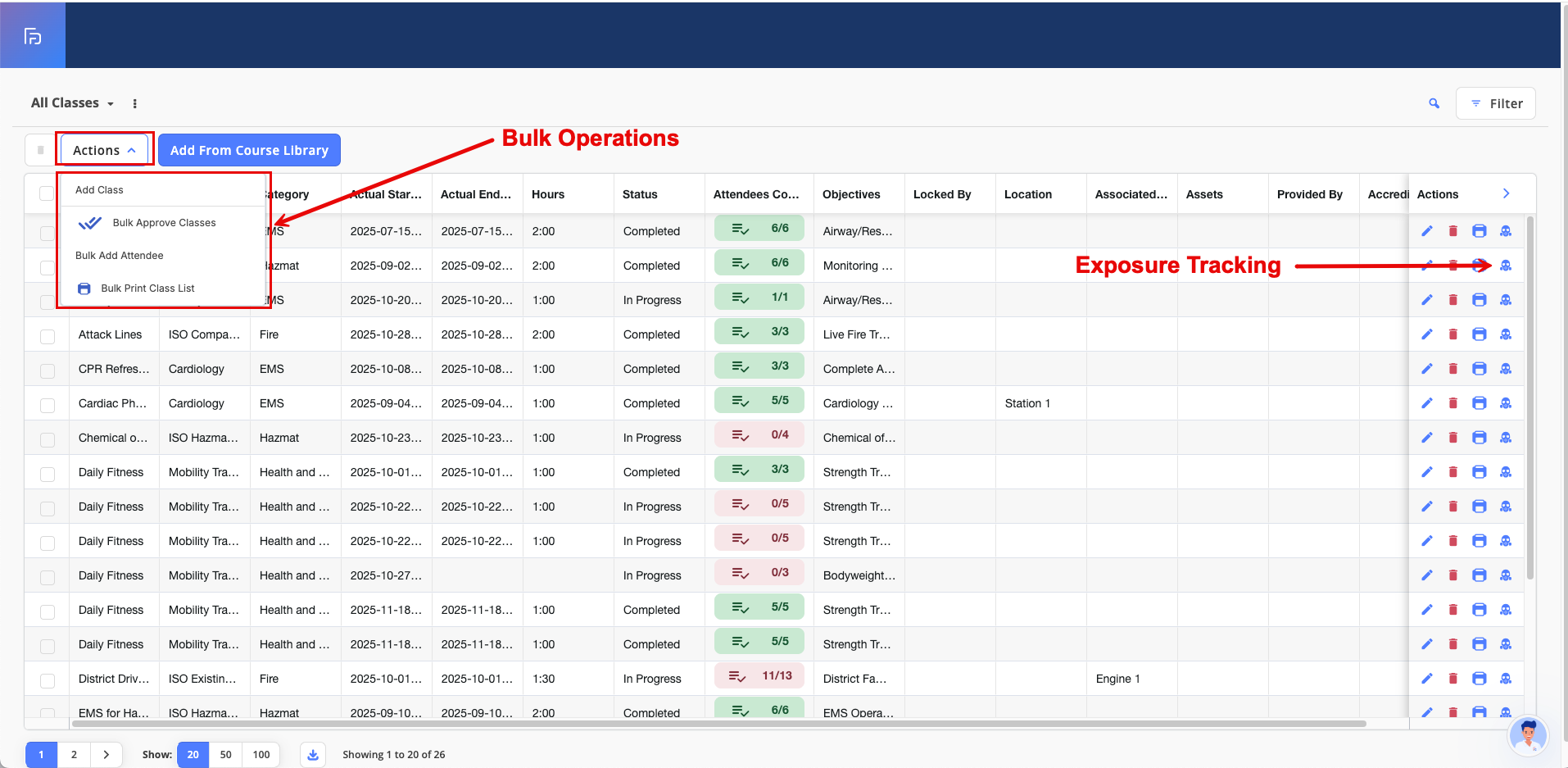
What - Training Class management now includes bulk class assignment to multiple personnel, bulk printing of combined rosters with each class on separate pages, and a direct Exposure shortcut from the Training Class list that routes to the Health and Wellness module with pre-populated training activity details when a user has the required access.
-
Why - These changes streamline high-volume administrative tasks, reduce repetitive class-by-class work, and improve operational accuracy by enabling faster assignments, easier roster reporting, and tighter linkage between training activities and exposure documentation for qualifying users.
How
-
Use Case - A coordinator preparing for a multi-day training series can select all relevant classes at once to bulk-assign attendees, generate a single combined roster packet for instructors, and—if authorized—open the Exposure shortcut directly from a class to log training-related exposure records without re-entering activity details.
Certification Expiration Notification Bulk Selection
-
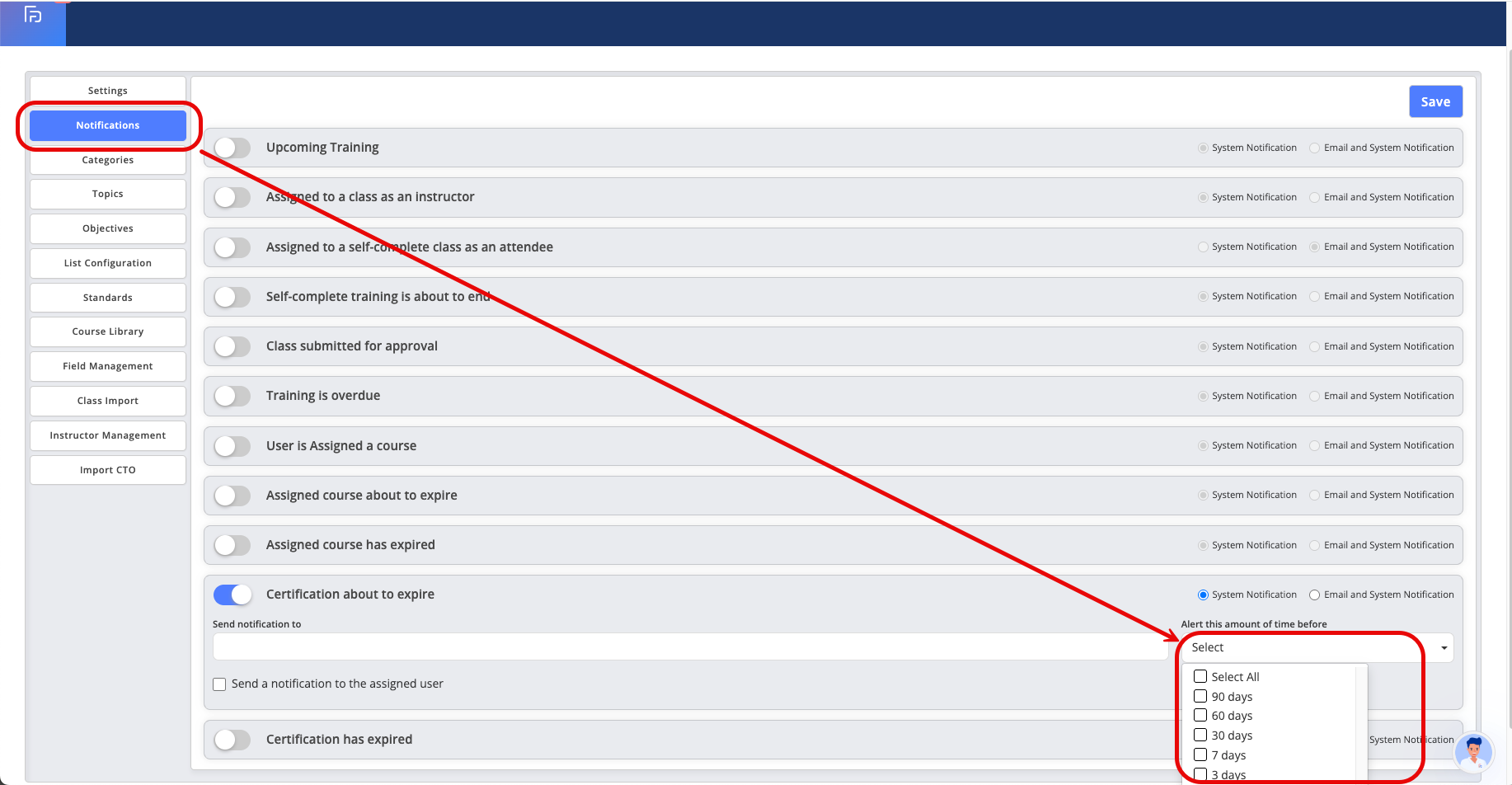
What – Training Administrators can now configure multiple notification intervals for expiring certifications, allowing the system to send reminders at several key milestones before a certification expires. Notifications can be delivered through system alerts, email, or both, with enhanced email content that clearly states how soon a certification will expire. Administrators also receive consolidated notifications that group all personnel with upcoming expirations into a single, easy-to-review view.
-
Why – Managing certification compliance requires timely and consistent communication to reduce lapses and last-minute follow-ups. By enabling multiple alert intervals and clearer notification content, agencies gain better visibility into upcoming expirations and can take proactive action to ensure personnel remain compliant without relying on manual tracking.
How
-
Navigate to Training > Setup > Certification Notification Settings
-
Select multiple notification intervals (for example, 90 days, 60 days, 30 days, 7 days, 1 day)
-
Choose the notification type: System Only or System + Email
-
Save your notification configuration
-
Note: Email templates automatically populate certification details and the selected expiration timeframe
-
Use Case – A training administrator configures alerts at 60, 30, and 7 days before expiration so personnel receive multiple reminders leading up to the deadline, while the administrator receives a consolidated report showing all members whose certifications are nearing expiration, enabling proactive scheduling of refresher training.
Training – Multi-Session Booking for Single Day Classes
-
What – Training classes can now support multiple sessions within a single day, allowing administrators to schedule up to five independent sessions (such as morning and afternoon segments) on the same date. This enhancement extends existing multi-session flexibility to single-day classes while maintaining backward compatibility for classes that only require one session.
-
Why – Many training scenarios involve multiple instructional blocks within a single day, often at different times or locations. Providing single-day multi-session support eliminates workarounds, improves scheduling accuracy, and better reflects how training is delivered in real-world operations. Previously for this functionality to work a multiple day class was required for the toggle to work.
How
-
Navigate to Training > Classes and create or edit a class
-
Locate and enable the Allow Multi-Sessions toggle
-
For single-day classes, set Start Date and End Date to the same day
-
Configure up to five sessions with individual start/end times and locations
-
Note: The system prevents overlapping session times and automatically sorts sessions chronologically
-
Use Case – An agency schedules a one-day training with a morning drill at the training facility and an afternoon classroom session at headquarters, allowing both sessions to be managed within a single class while maintaining clear attendance and scheduling records.
Training – Time Clock Toggle Permission Controls (Clients with Scheduling and Time Clock Enabled)
-
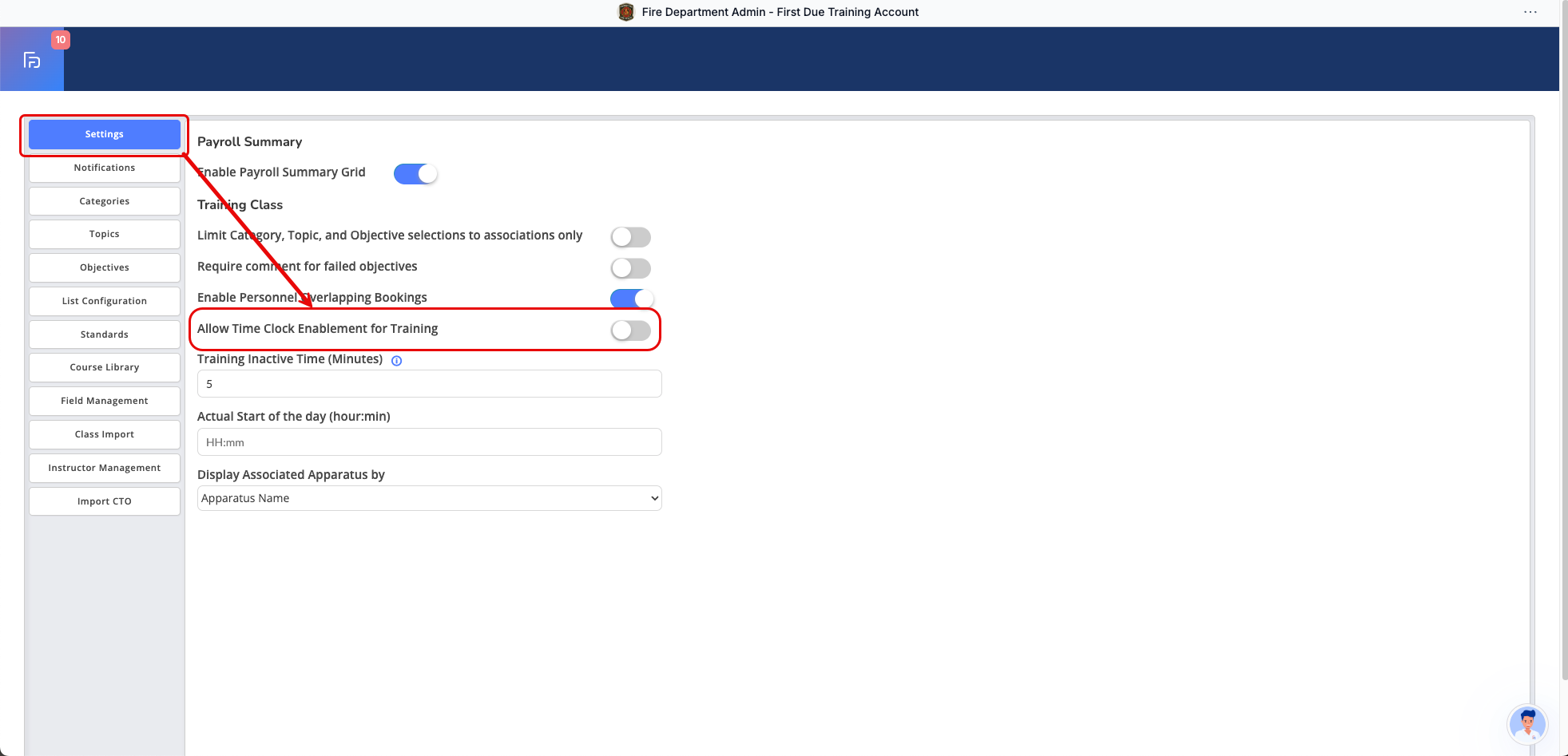
What – New permission controls allow administrators to independently manage Time Clock visibility for the Training module and the Events & Activities module, providing greater control over where time tracking features are available.
-
Why – Different modules may require different time tracking behaviors based on operational needs. Separating Time Clock permissions ensures agencies can enable or disable time tracking precisely where it is needed without impacting other areas of the system.
How
-
Navigate to Setup > Settings (Training) or Setup > General (Events)
-
Locate the Time Clock Enablement permission toggle
-
Toggle ON to display Time Clock options in the selected module
-
Toggle OFF to hide Time Clock options
-
Note: Each module operates independently based on its own permission setting
-
Use Case – An agency enables Time Clock tracking for training sessions to capture instructional hours while disabling it for events, ensuring time tracking aligns with operational policies for each module.
Bug Fixes
Training – Linked Objectives Display on Category-Level Certifications
-
What – Linked objectives now correctly display and report under their parent categories when certifications are tracked at the category level, ensuring the full objective hierarchy is visible and consistent across all certification views.
-
Why – Accurate representation of certification requirements depends on maintaining proper hierarchical relationships. This fix ensures users see all relevant objectives and that reporting reflects the correct category associations.
How
-
Navigate to Training > Certifications
-
Create or view a certification tracked by Category
-
Review certification requirements to confirm all linked objectives display under the appropriate category
-
Note: No additional configuration is required
-
Use Case – When reviewing a category-based certification, users can now see all direct, associated, and linked objectives grouped correctly under the category, ensuring clarity when verifying completion requirements.
Training – Scored Objective Toggle Functionality with Limit Edits
-
What – Resolved an issue where the scored objective toggle did not function when Limit Edits was enabled at the course level, even after objectives were removed from the locked fields list.
-
Why – Instructors and administrators need consistent control over objective scoring configurations. Restoring toggle functionality ensures objective settings behave as expected when edit restrictions are adjusted.
How
-
Navigate to Training > Courses and enable Limit Edits
-
Remove Objectives from the locked fields list
-
Edit an existing objective or add a new objective
-
Toggle Scored Objective as needed
-
Note: The fix applies to both new and existing objectives
-
Use Case – An administrator updates a course to allow objective edits and can now successfully enable or disable scoring on objectives without encountering unexpected restrictions.
Related Articles
Health & Wellness Release Notes - December 2025
New Features Add Form Builder to Exposure – Print Action in Form What Printing for Exposure records now supports custom templates created through Form Builder. A new Print action has been added directly to Exposure records, allowing users to generate ...
Asset Release Notes: December 2025
Video New Features 1. New Inventory Workflow What - Introduced a comprehensive inventory workflow redesign that relocates Inventory List to Setup and creates a new "Inventory By Location" tab in Inventory Management, providing enhanced data ...
Training Module: Release Notes January 2026
Enhancements Training Certifications – Manage Certifications Page What - An enhanced Manage Certifications page has been introduced to provide a centralized interface for overseeing certification assignment, renewal, and status tracking across all ...
Release Notes - Scheduling Module
In order to provide you with more detailed information on our updates, we have broken the Release Notes down by module. Enhancements Build New Rotation What – New rotation rules have been added to the scheduling system, providing additional ...
Training 201
First Due Academy: Training 201 This training session offers specialized instruction for the features and functionality associated with First Due's Training Module. In 201 level sessions we review advanced features of First Due modules including data ...